

According to XM’s official MT5 platform page, XM WebTrader is a browser-based version of MT4/MT5 that lets traders access markets without downloading or installing any software. It runs directly through a supported web browser on PC or Mac, using the same trading account credentials as the desktop platform.
According to XM’s official help center, logging in to XM WebTrader requires entering the same account credentials, account number, password, and server, assigned to the trader’s MT4 or MT5 account. The login page is accessed directly from the XM website, without needing any separate registration step, and the correct server must match the one assigned to that account for the login to work on either PC or Mac browsers.
According to XM’s official help center, both the MT4 and MT5 desktop platforms support trading via Expert Advisors (EAs) or trading robots, a capability that XM WebTrader—offering core charting, order placement, and stop loss functions with a more limited set of advanced tools—does not provide. Features such as Expert Advisor automation and certain one-click trading configurations may differ between the two versions.
This guide from Mbroker walks through what XM WebTrader is, how to log in on MT4 or MT5, and how its trading functions compare to the desktop platform, starting with a closer look at what XM WebTrader actually is.
What Is XM WebTrader?
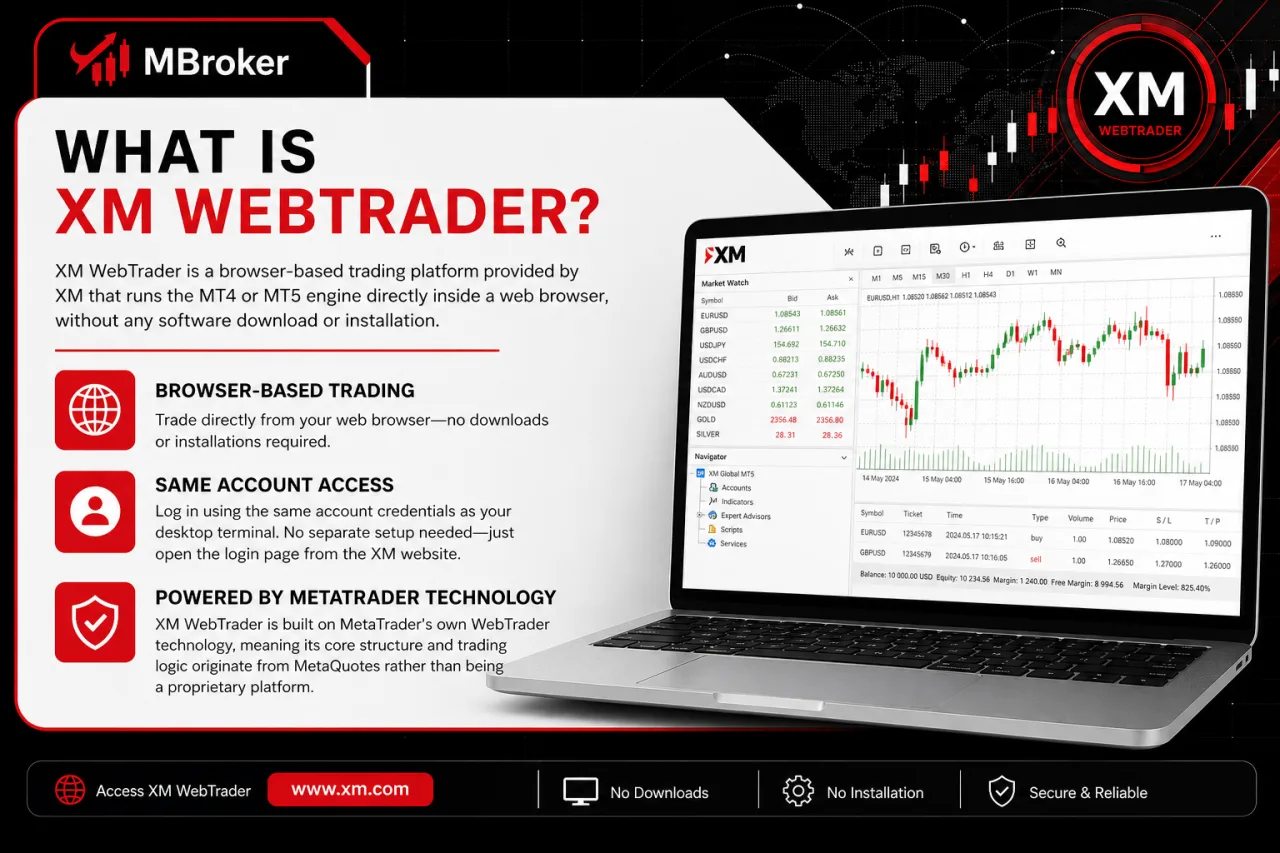
XM WebTrader is a browser-based trading platform that connects to existing MT4 or XM MT5 trading accounts, allowing traders to access the markets without downloading or installing desktop software. It connects to the same account credentials used on the desktop terminal, so no separate setup is required beyond opening the login page from the XM website.
The platform is built on MetaTrader’s own WebTrader technology, meaning its core structure and trading logic originate from MetaQuotes rather than being a proprietary XM system. XM runs this browser-based platform on its MT4 and MT5 trading servers, allowing clients to access the same account through a browser instead of a locally installed application.
Because it works through standard desktop browsers on PC or Mac, XM WebTrader removes the need to install MT4 or MT5 software before placing a trade. Traders open charts, place orders, and monitor open positions from any supported browser window, using the account number, password, and server assigned to their MT4 or MT5 account.
How to Access and Log In to XM WebTrader (MT4/MT5)?
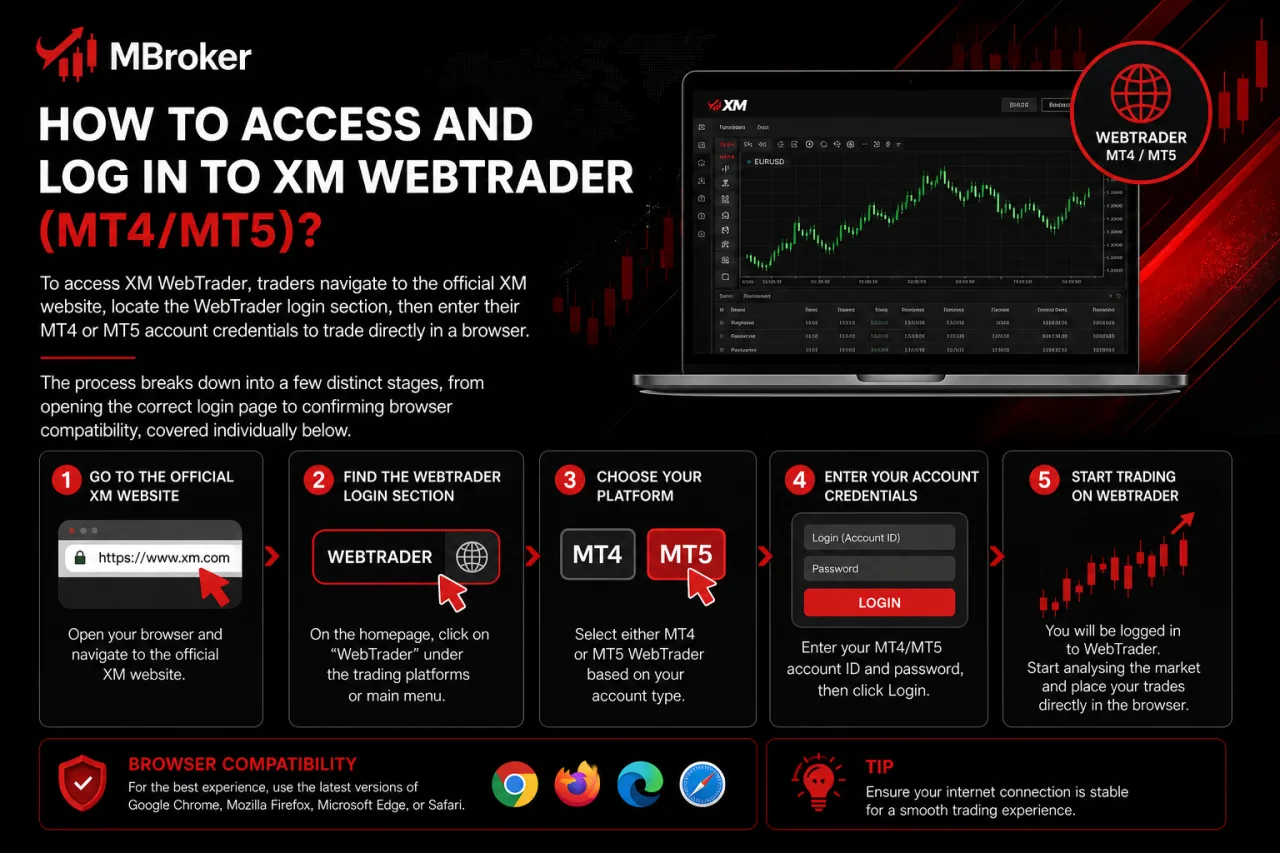
To access XM WebTrader, traders navigate to the official XM website, locate the WebTrader login section, then enter their MT4 or MT5 account credentials to trade directly in a browser. The process breaks down into a few distinct stages, from opening the correct login page to confirming browser compatibility, covered individually below.
What Do You Need Before Logging In (Account Number, Password, Server)?
Logging in to XM WebTrader requires an existing MT4 or MT5 account, whether demo or live, along with the account number, password, and trading server name issued by XM at account creation. No separate WebTrader registration exists, since the platform authenticates directly against the trader’s existing MT4 or MT5 login.
These three credentials work together and none can be substituted:
- Account number: identifies which trading account is being accessed.
- Password: authorizes entry (investor or master password, matching what was set during account setup).
- Server name: routes the login to the correct XM server hosting that specific account, demo or real.
These details typically arrive in the welcome email sent after MT4 or MT5 account creation, which generally includes the account number, password, and assigned server.
Traders who cannot locate this email retrieve the same details from the XM Members Area, where active MT4 and MT5 accounts are listed individually with their assigned server names. Password resets, when needed, are also handled through the Members Area or official XM support channels rather than by sharing credentials elsewhere.
What to Do If You Cannot Log In to XM WebTrader?
To resolve a failed XM WebTrader login, traders verify the server name first, since selecting the wrong demo or real server ranks among the most common causes of rejected login attempts. This issue directly follows the credential requirements covered above, since a mismatch in any single field, not just the server, blocks access to the platform.
Several other factors interfere with a successful WebTrader login:
- Incorrect account number or password entry, including case-sensitive characters typed wrong.
- Outdated browser cache or cookies that conflict with the WebTrader login page.
- Temporary account restrictions placed on the trading account by XM.
- Unsupported or outdated browser versions that fail to load the WebTrader interface correctly.
Traders unable to confirm their exact credentials cross-check the account number and server name listed in the XM Members Area under their active MT4 or MT5 accounts. Clearing the browser cache or attempting login through an alternative supported browser resolves most temporary loading errors.
For unresolved login failures, particularly those linked to account restrictions or repeated authentication errors, contacting official XM support channels directly addresses the issue. Passwords or verification details are never shared through email replies, chat messages, or any unofficial third-party channel, only through the secured Members Area or verified XM support contact points.
XM WebTrader vs MT4/MT5 Desktop: What Are the Differences in Functions?
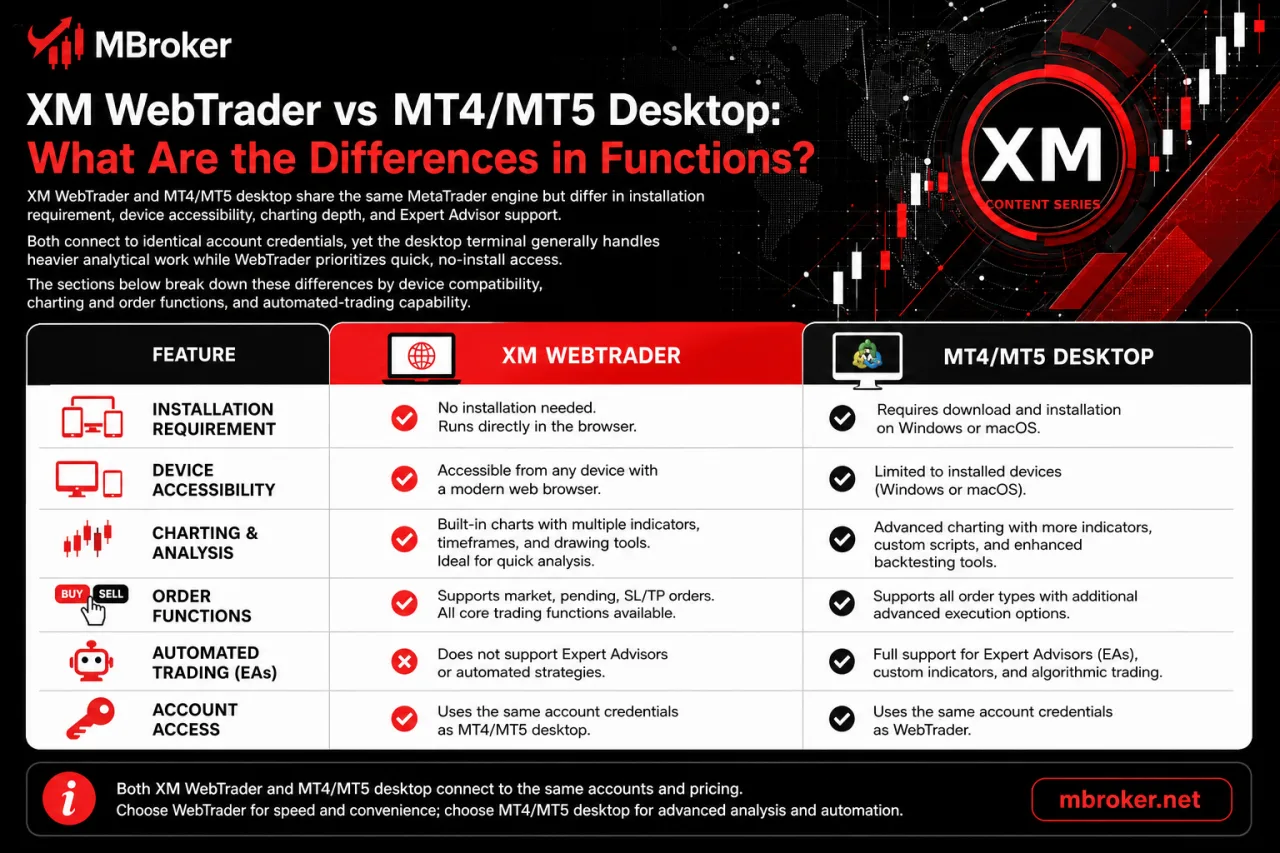
XM WebTrader and MT4/MT5 desktop share the same MetaTrader engine but differ in installation, charting depth, and EA support. Both connect to identical account credentials, yet the desktop terminal handles heavier analytical work while WebTrader prioritizes quick, no-install access. The sections below break down these differences by device compatibility, charting and order functions, and automated-trading capability.
Does XM WebTrader Support One-Click Trading and Stop Loss/Take Profit Orders?
Yes, XM WebTrader supports one-click trading along with stop loss and take profit fields on standard order types, though the toggle and order panel appear in a simplified layout compared to the desktop terminal. This directly answers the order execution question raised in this comparison: which functions carry over to the browser version and which remain desktop-only.
The one-click trading option, when enabled, sends market orders instantly from the chart without a confirmation window, mirroring the same toggle found in MT4 and MT5 desktop. Market and pending order types both include stop loss and take profit input fields directly in the order ticket, letting traders set exit levels at the moment of entry rather than adding them afterward.
Functional gaps still separate WebTrader from the desktop terminal:
- Fewer pending order variations appear in some WebTrader configurations, depending on the broker’s server setup.
- Limited scripting or automated order modification tools accompany the browser interface, since Expert Advisor support does not extend to WebTrader.
- Reduced chart-based order dragging exists in certain browser sessions compared to the fuller drag-and-drop editing found on desktop.
Interface elements differ between MT4 WebTrader and MT5 WebTrader builds depending on account server configuration.
Does XM WebTrader Support Expert Advisors and Automated Trading?
No, XM WebTrader does not support running custom Expert Advisors or automated trading scripts, since EA execution requires a locally installed MT4 or MT5 terminal rather than a browser session. This distinction follows directly from the automated-trading gap already noted between WebTrader and the desktop platform.
This restriction stems from MetaTrader’s own architecture, not from an XM-specific policy. A few points clarify why:
- Expert Advisors run as compiled files stored inside the desktop terminal’s data folder, a structure the browser-based platform does not maintain.
- Continuous background processing, required for EAs to monitor markets and execute trades automatically, depends on the terminal staying installed and running locally.
- MetaQuotes designed WebTrader as a lightweight access point for manual charting and order placement, excluding the scripting environment used by MT4 and MT5 desktop.
Traders using automated strategies must keep their MT4 or MT5 desktop terminals running, either locally or through remote hosting. Our XM VPS guide explains how a virtual private server can keep Expert Advisors operating without depending on a personal computer.
How to Select the Correct Server and Access Demo or Real Accounts on XM WebTrader (PC and Mac)?
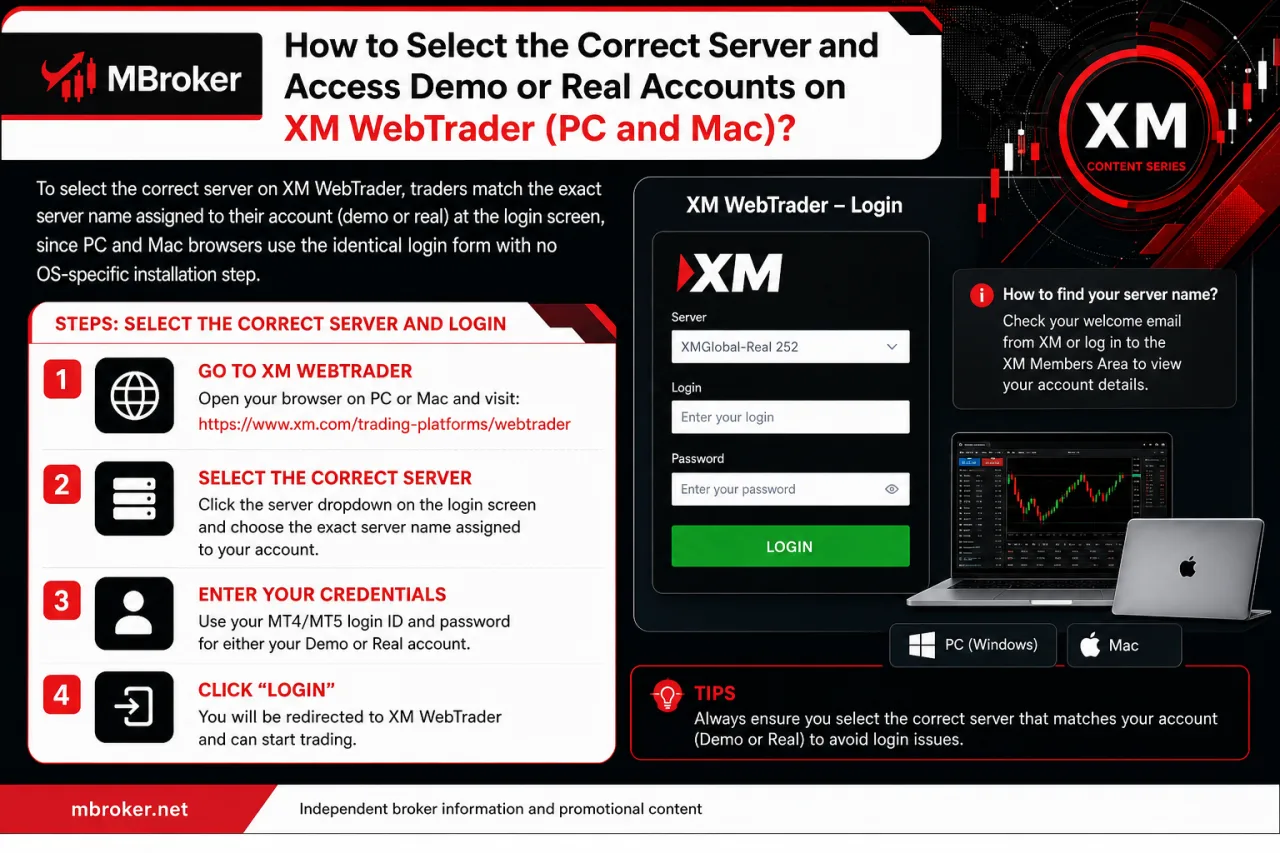
To select the correct server on XM WebTrader, traders match the exact server name assigned to their account (demo or real) at the login screen, since PC and Mac browsers use the identical login form with no OS-specific installation step. This point extends the server-related login requirements already covered above, focusing specifically on how demo and real servers get identified and matched correctly across both operating systems.
The steps below outline this process on either PC or Mac browser sessions.
To find the correct server name, traders open the XM Members Area and check the account details listed under their active MT4 or MT5 accounts, where each account displays its assigned server alongside the account number. This directly resolves the server-lookup question tied to demo and real account access mentioned earlier.
Demo accounts and real accounts carry distinct server names even under the same trader profile. The Members Area lists these separately, so cross-checking the account number against its paired server name before entering WebTrader avoids selecting a mismatched server type.
Selecting the wrong server causes a login failure because WebTrader routes credentials to a specific XM server, and a mismatched demo or real server rejects an otherwise correct account number and password. This connects directly to the login troubleshooting steps described earlier in this guide.
A few reasons explain this behavior:
- Demo and real accounts run on separate servers, so credentials valid on one server return an authentication error on the other.
- Server names differ slightly between account types, making a small selection mistake enough to block access.
- The login system checks server, account number, and password as a matched set, rejecting the attempt if any single field points to the wrong server.
Is XM WebTrader Compatible with Both Windows and Mac?
Yes, XM WebTrader runs on both Windows and Mac since it operates entirely inside a browser rather than as an installed application tied to one operating system. This distinction addresses the device compatibility question raised after comparing WebTrader’s order functions against the desktop terminal above.
A few points explain why this cross-platform access works consistently:
- Browser-based execution removes the need for a separate installer file for Windows or macOS.
- Supported browsers on either operating system load the identical WebTrader login page and interface.
- Minimum browser version requirements, not the operating system itself, determine whether WebTrader loads correctly.
Desktop MT4 and MT5, by contrast, require a Windows-specific or Mac-specific installer downloaded and set up separately before login, since each build runs as native software rather than through a browser. Traders switching between a Windows PC and a Mac reach the same WebTrader session without reinstalling anything, provided the browser in use meets XM’s current requirements.
For traders who prefer a dedicated mobile application, our XM App guide explains Android and iOS access, account management features, and the differences between mobile apps and browser-based trading.
What Are Some Lesser-Known Technical Aspects of Using XM WebTrader?
A few lesser-known technical aspects shape continuous XM WebTrader use: session timeout behavior, chart and indicator saving tied to the browser session, and dependency on a stable internet connection. These points sit outside the core login and comparison flow already covered, yet directly affect how reliably a trading session holds up over time. The following sections break down each of these behaviors individually.
Does XM WebTrader Save Chart Settings and Templates Between Sessions?
No, XM WebTrader does not reliably save custom chart layouts, saved templates, or indicator setups between sessions, since browser-based access depends on session data that clears when a trader logs out or wipes browser history. This directly answers the persistence question raised for a browser platform that runs without any local installation.
A few reasons explain this limitation:
- Desktop MT4 and MT5 store templates, indicator configurations, and chart profiles as local files inside the terminal’s installation folder, a structure WebTrader does not maintain.
- Clearing browser cache or cookies removes any session-based settings tied to the WebTrader interface.
- Logging in from a different browser or device loads a fresh WebTrader session without the previous chart setup.
Traders needing consistent chart configurations across sessions keep the desktop terminal installed rather than relying on WebTrader for repeated, customized analysis.
What Are the Minimum Browser and Internet Requirements for Smooth XM WebTrader Use?
Smooth XM WebTrader use depends on running an up-to-date browser with JavaScript and cookies enabled, paired with a stable broadband internet connection. This requirement extends the browser-compatibility point raised earlier, since the operating system itself matters less than the browser version and connection quality behind it.
MetaTrader’s own WebTrader technical documentation outlines these baseline conditions for reliable operation:
- Running a recent version of Chrome, Firefox, Safari, or Edge, since outdated browser builds fail to render the WebTrader interface correctly.
- Enabling JavaScript and cookies in browser settings, since the platform depends on both to authenticate login sessions and load charts.
- Maintaining a stable broadband connection, since intermittent or slow connections disrupt live price feeds and order execution.
Falling short of any of these conditions leaves traders exposed to broken chart displays, failed login attempts, or delayed order execution at the exact moment fast decisions matter most.
Traders experiencing slow chart loading or delayed order confirmation check browser update status and connection stability first, before assuming a server-side account issue.
Conclusion: Is XM WebTrader the Right Platform for You?
XM WebTrader is a practical choice for traders who need quick, no-install access to their XM MT4 or MT5 account through a supported browser on Windows or Mac. It uses the same account number, password, and assigned server as the desktop platform while providing the core tools needed to view charts, place manual orders, and manage stop loss or take profit levels. However, its convenience comes with clear limitations: Expert Advisors cannot run in the browser, advanced analytical functions are more limited, and chart settings may not persist reliably between sessions.
Traders who rely on automated strategies, custom indicators, or repeatable workspace setups are therefore better served by the desktop terminal. For reliable access, open WebTrader only through XM’s official website, select the exact server assigned to the account, keep the browser updated with JavaScript and cookies enabled, use a stable internet connection, and never share trading credentials through unofficial channels.

Sylas Trenven is the XM Trading Platform & Markets Editor at Mbroker, specializing in Forex trading platforms, financial instruments, and market-related research. He focuses on analyzing MetaTrader 4, MetaTrader 5, trading technology, and XM market conditions to provide accurate, practical, and accessible information for Forex and CFD traders.