

XM MT5 can be downloaded from the XM Members Area for Windows and macOS or from Google Play and the Apple App Store for Android and iOS. First, confirm that the device meets the current MetaQuotes requirements, use only an official installer and follow the on-screen steps to complete the setup.
Next, logging in requires the exact XM trading account number, password and server assigned to that account. Selecting the wrong server can block access even when the other credentials are correct, so check the welcome email or XM Members Area before troubleshooting the connection.
Alternatively, XM MT5 WebTrader provides browser-based access without requiring any download or installation. It works through a current JavaScript-enabled browser and uses the same account credentials and server-matching rules as the desktop and mobile applications.
In comparison with MT4, MT5 offers broader multi-asset support, 21 timeframes, six pending-order types and MQL5-based Expert Advisors. However, MT4 may remain more suitable for traders who depend on existing MQL4 indicators or automated strategies.
Beyond these core functions, XM MT5 includes Depth of Market, an integrated economic calendar and encrypted data transmission between the terminal and trading server. Nevertheless, traders should still use strong credentials, official access channels and a stable connection, particularly when running automated strategies.
Overall, XM MT5 is best suited to traders who need multi-asset access, advanced analysis and order-management tools, automation and flexible trading across desktop, mobile and web. The following sections explain how to install, access, compare and secure the platform before deciding whether it suits a specific trading setup.
How to Download and Install XM MT5?
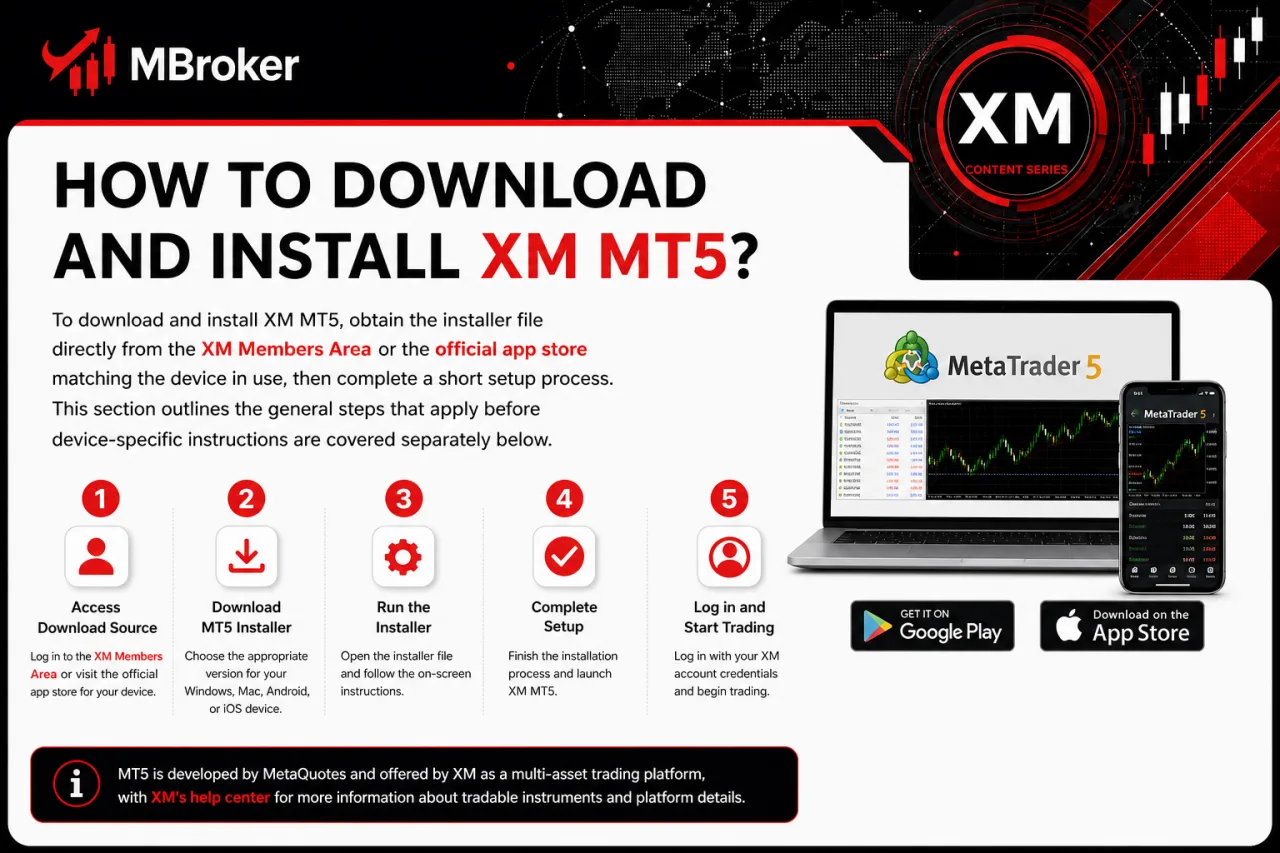
To download and install XM MT5, obtain the installer file directly from the XM Members Area or the official app store matching the device in use, then complete a short setup process. This section outlines the general steps that apply before device-specific instructions are covered separately below.
MT5 is developed by MetaQuotes and offered by XM as a multi-asset trading platform, with XM’s help center confirming that traders can access forex, crypto CFDs, stock CFDs, stock index CFDs, precious metal CFDs and other instrument classes through it. XM distributes MT5 access through its own client portal rather than hosting a separate proprietary build of the software.
The installation package differs depending on the operating system, since Windows and macOS versions use downloadable desktop installers while Android and iOS versions are retrieved through their respective official app stores. After downloading, the file requires running or opening to complete installation, followed by logging in with the trading account credentials issued by XM.
Before installing, verify that the source is an official XM or MetaTrader channel rather than a third-party website, since unauthorised installers may not match the current platform version. Reviewing the installation steps against the most recently updated information from XM is advisable, as download procedures and app versions can change over time.
What Are the System Requirements for XM MT5 on Windows and macOS?
System requirements for XM MT5 depend on the operating system, with Windows and macOS versions each following the baseline hardware and OS specifications published by MetaQuotes. This differs from the download process covered above by focusing on device readiness rather than installer sourcing.
For desktop use, MT5 generally runs on supported Windows versions with adequate free disk space, RAM and a stable internet connection for live quote streaming and order execution. According to MetaQuotes’ official installation guide, the macOS version of MT5 requires at least macOS Catalina (10.15.7), supports all Apple processors, and needs around 1.5 GB of free memory for installation.
Since MetaQuotes periodically updates platform builds, older operating systems may lose compatibility over time. Checking the official MetaTrader 5 download page or XM’s platform section before installation confirms whether the current device meets the listed requirements. Reviewing this information close to the installation date reduces the risk of encountering unsupported configurations.
Is XM MT5 Available on Android and iOS Devices?
Yes, XM MT5 is available on Android and iOS devices, with dedicated apps distributed through Google Play and the Apple App Store. This directly continues the device-compatibility question raised for desktop versions above, now applied to mobile operating systems.
MetaQuotes lists the MT5 mobile app on both Google Play and the App Store under its own developer name, and XM directs clients to these same official apps rather than offering a separate branded mobile build.
Device compatibility varies depending on the operating system version installed on the phone or tablet, since older Android or iOS builds may not support the current MT5 app release. Checking the minimum OS version listed on the respective app store page before installing confirms whether a specific device qualifies.
As with desktop installation, downloading MT5 only through Google Play or the Apple App Store avoids unofficial APK files or unauthorised sources. Reviewing the app store listing close to the installation date reflects any recent compatibility updates from MetaQuotes.
Traders looking for XM’s separate mobile application can explore our XM App guide, which explains its account management features, mobile tools, and key differences from MetaTrader applications.
How to Install XM MT5 Step by Step?
To install XM MT5 step by step, download the correct installer or app for the device in use, run the setup file, accept the license agreement, then complete the installation before logging in. This process follows directly from the download and system-requirement checks covered above, now outlined as a single sequence.
The general steps apply across devices, though the exact interface differs between desktop and mobile versions:
- Download the installer file from the XM Members Area for Windows or macOS, or the MT5 app from Google Play or the Apple App Store for Android and iOS.
- Run the downloaded file or tap install on the app store listing to begin setup.
- Review and agree to the license terms presented by MetaQuotes during installation.
- Follow the on-screen prompts to select an installation folder (desktop only) and complete the setup.
- Open the installed platform and log in using the trading account number, password and server details issued by XM.
Using only the official XM client area or the recognised app stores during each step avoids installer files from unverified third-party sites. Checking the installation screens against the current MetaTrader 5 documentation confirms whether steps have changed since this guide was reviewed.
How to Log In to XM MT5 and Select the Correct Trading Server?
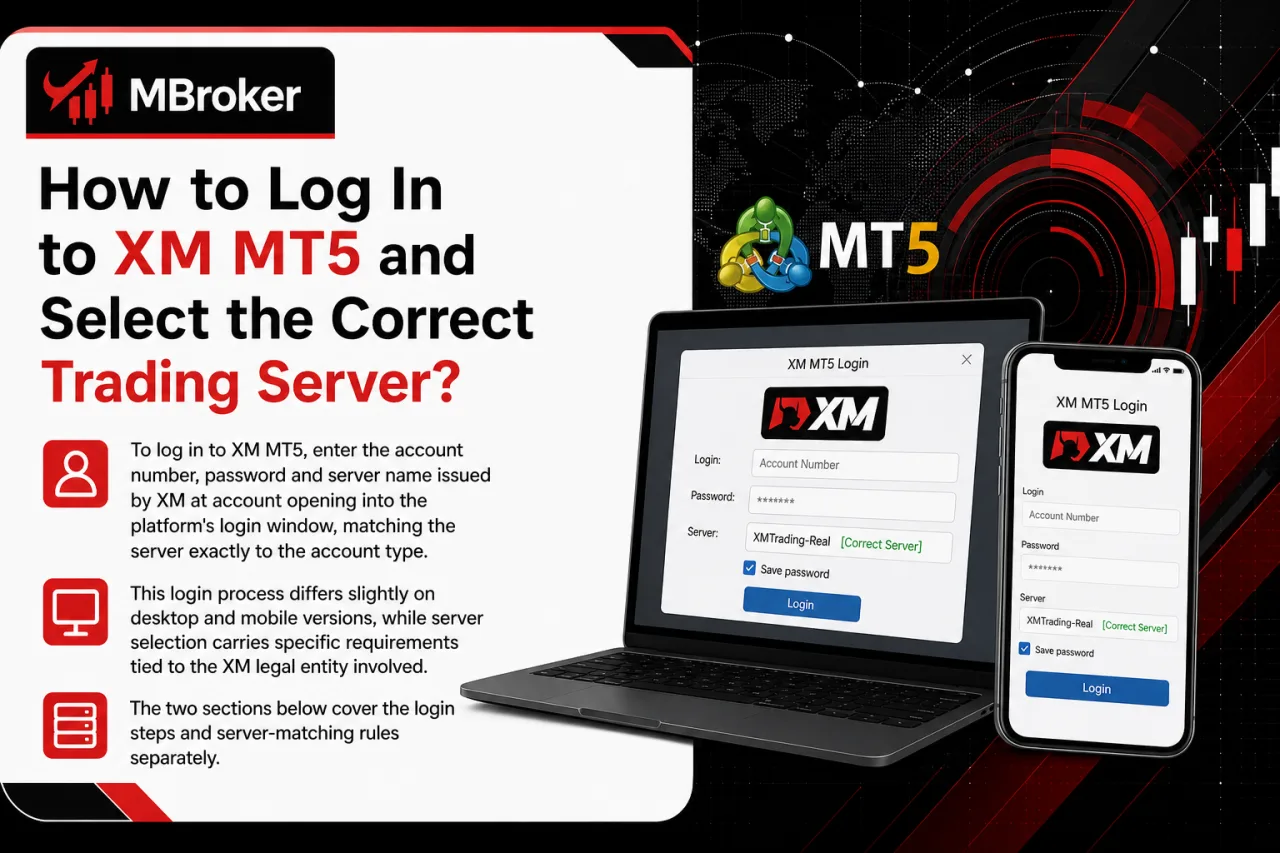
To log in to XM MT5, enter the account number, password and server name issued by XM at account opening into the platform’s login window, matching the server exactly to the account type. This login process differs slightly on desktop and mobile versions, while server selection carries specific requirements tied to the XM legal entity involved. The two sections below cover the login steps and server-matching rules separately.
What Is an XM Trading Server and Why Does It Matter?
A trading server in XM MT5 functions as the connection point linking the platform to XM’s pricing feed and order-execution system for a specific account type or legal entity. This concept directly extends the login process described above, since entering correct credentials alone does not complete access without matching the right server.
MT5’s architecture, as designed by MetaQuotes, routes every account through a named server rather than a single shared connection point. XM operates multiple trading servers, with each one tied to a particular legal entity, account category or account currency, and according to XM’s help center, clients select the corresponding server when logging in, with the exact server name typically provided by email at account opening or found inside the Members Area.
Selecting the wrong server prevents login even when the account number and password are correct, since MT5 searches only the specified server address for that account record. This makes server accuracy a functional requirement rather than an optional detail during setup. Confirming the exact server name through official XM account documents before logging in avoids repeated connection failures.
How to Find Your XM MT5 Login Credentials?
To find XM MT5 login credentials, check the welcome email sent by XM after account creation or log into the XM Members Area, where the account number, password and server name appear under the trading account details. This continues directly from the server-matching requirement covered above, since locating the correct credentials comes before selecting the right server.
XM issues these three login elements together at account opening, and the Members Area typically stores the account number and server name under a dedicated trading accounts section, though the initial password often arrives only through the registration email rather than being displayed again afterward. A password reset through the Members Area or MT5 login window generates a new one if the original email cannot be located.
Checking only official XM account communications and the Members Area for these details avoids reliance on unverified sources. Sharing login credentials publicly, including in forums, screenshots or support requests outside official XM channels, exposes the trading account to unauthorised access, since anyone holding the account number, password and server name can log in from any device. Storing these details securely and requesting a reset through XM’s official channels whenever credentials are lost or suspected compromised is the recommended safeguard.
What to Do If XM MT5 Login Fails?
If XM MT5 login fails, re-check the account number, password and server name against the original XM account details before attempting to log in again. This continues from the credential-lookup process covered above, since login failures typically trace back to one of the same three login elements or a connectivity issue on the device.
Common causes behind a failed login include:
- Entering an incorrect account number or password copied incorrectly from the welcome email.
- Selecting a server name that does not match the specific account, since MT5 searches only the specified server for that account record.
- Losing internet connectivity on the device, which prevents the platform from reaching XM’s servers at all.
- Attempting to log into a demo account using a live server or the reverse.
Reopening the server list inside MT5 and searching for the exact server name issued by XM resolves mismatched-server errors in most cases. If credentials still fail after confirming these details, requesting a password reset through the XM Members Area or contacting XM support directly addresses account-specific access issues rather than platform faults. Checking network status separately rules out connectivity as the cause before escalating to support.
What Is XM MT5 WebTrader and How to Use It Without Installation?
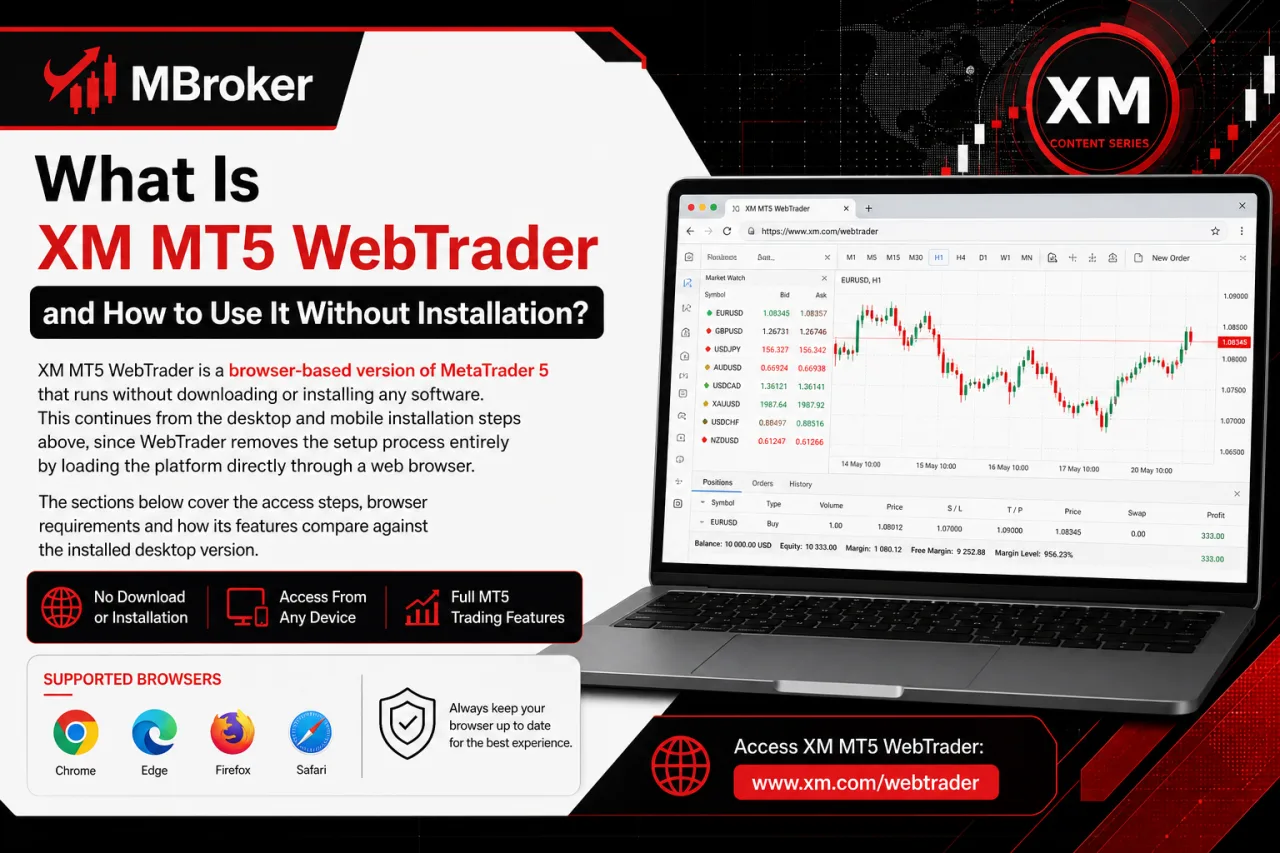
XM MT5 WebTrader is a browser-based version of MetaTrader 5 that runs without downloading or installing any software. This continues from the desktop and mobile installation steps above, since WebTrader removes the setup process entirely by loading the platform directly through a web browser. The sections below cover the access steps, browser requirements and how its features compare against the installed desktop version.
What Are the Browser and System Requirements for XM MT5 WebTrader?
XM MT5 WebTrader runs on modern versions of Chrome, Firefox, Safari and Edge, with no separate desktop system specifications required beyond a working browser and stable internet connection. This continues from the browser-based access described above, focusing specifically on what the browser and device need to support before loading the platform.
MetaQuotes builds WebTrader to run through standard JavaScript-enabled browsers rather than a dedicated installer, which removes the operating-system checks relevant to the desktop and mobile versions covered earlier. Minimum requirements typically include an updated browser version, JavaScript enabled and a stable internet connection capable of streaming live quotes without interruption.
Older or outdated browser versions may render the interface incorrectly or block certain WebTrader functions, since MetaQuotes periodically updates the underlying web application. Confirming the current supported browser list directly on the MetaTrader 5 WebTrader page before logging in avoids compatibility issues tied to outdated software.
How to Log In to XM MT5 WebTrader?
To log in to XM MT5 WebTrader, navigate to the official XM WebTrader page, enter the account number, password and server name, then access the trading interface directly through the browser. This login sequence mirrors the credential-matching rules covered above for desktop and mobile, applied here through a browser window instead of an installed application.
The process follows a short set of steps:
- Open the official XM WebTrader link from the XM Members Area or XM website rather than a bookmarked or third-party page.
- Enter the account number issued by XM into the login field.
- Enter the corresponding password for that trading account.
- Select the exact server name matching the account, using the same server details required for desktop and mobile login.
- Confirm the login to load charts, order windows and account details inside the browser session.
Since WebTrader draws on the same account records as the desktop and mobile versions, an incorrect server selection blocks access in the same way described earlier. Logging in only through the official XM WebTrader link, rather than saved third-party pages, keeps the session tied to XM’s verified environment.
XM MT5 vs MT4: What Are the Key Differences in Features and Instruments?
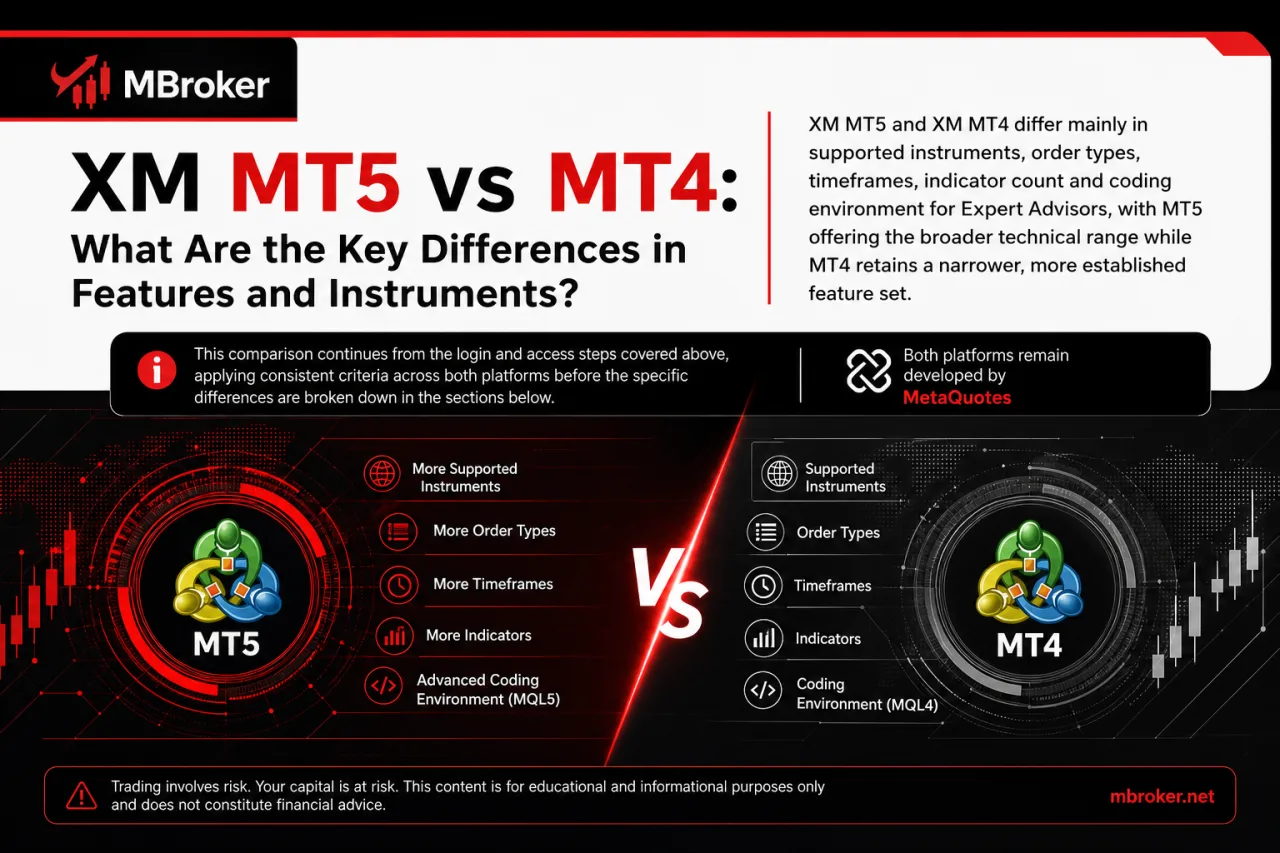
XM MT5 and XM MT4 differ mainly in supported instruments, order types, timeframes, indicator count and coding environment for Expert Advisors, with MT5 offering the broader technical range while MT4 retains a narrower, more established feature set. This comparison continues from the login and access steps covered above, applying consistent criteria across both platforms before the specific differences are broken down in the sections below.
Both platforms remain developed by MetaQuotes and distributed through XM’s official channels rather than as separate proprietary builds. The sections that follow address instrument access, order and timeframe options, and Expert Advisor support individually, since each area carries distinct technical differences worth examining on its own rather than summarising them in a single overview.
What Order Types and Execution Functions Are Available in XM MT5?
XM MT5 supports market execution, pending orders, and stop orders, covering the core order categories documented by MetaQuotes for the MT5 terminal. This continues from the MT4 comparison introduced above, now detailing the specific order and execution functions available within MT5 itself.
MetaQuotes builds MT5 with a wider pending-order set than MT4, adding Buy Stop Limit and Sell Stop Limit alongside the standard Buy Limit, Sell Limit, Buy Stop and Sell Stop types. Market orders execute at the current available price, while pending orders trigger only once the market reaches a specified level.
Execution mode itself, however, depends on the XM account type and the instrument traded rather than the platform alone:
- Market execution applies quoted prices without repricing on certain XM account categories.
- Instant execution may apply on other account types, subject to requote possibilities.
- Stop Loss and Take Profit levels attach to open positions or pending orders for risk management purposes.
- Execution speed and slippage vary by instrument liquidity and prevailing market conditions.
Confirming the exact execution model tied to a specific XM account type requires checking XM’s own documentation, such as its execution policy page and trading glossary on market execution, before trading. Reviewing the current order-type list on MetaQuotes’ MT5 documentation confirms whether any functions have changed since this guide was reviewed.
What Charting Tools and Technical Indicators Does XM MT5 Offer?
XM MT5 offers multiple timeframes, several chart types and a large built-in indicator library, all developed by MetaQuotes as standard MT5 terminal features. This continues from the order-execution details covered above, now focusing on the charting and analysis side of the platform rather than trading functions.
According to MetaQuotes’ official platform page, the MT5 charting system includes 21 timeframes, ranging from one-minute charts up to monthly views, compared to a narrower set available in MT4.
Chart types include line, bar and candlestick displays, each rendering the same price data through a different visual format rather than altering the underlying feed.
MT5 includes a wide range of built-in technical indicators and analytical objects, covering trend, oscillator, volume and Bill Williams categories.
These tools plot historical price behaviour and mathematical calculations on the chart without generating trade recommendations or predicting future price movement. Traders apply and configure indicators manually, and interpreting the resulting output for any decision remains a task performed independently of the platform itself. Checking the current indicator list inside the MT5 terminal or MetaQuotes’ documentation confirms whether any tools have been added or updated since this guide was reviewed.
Does XM MT5 Support Expert Advisors and Automated Trading?
Yes, XM MT5 supports Expert Advisors and automated trading, since MetaQuotes builds the platform around the MQL5 programming language used to create, test and run automated strategies. This continues from the charting and indicator tools covered above, now addressing the automation side of the same MT5 terminal.
MT5’s Strategy Tester allows an Expert Advisor to run against historical price data before deployment on a live or demo chart, while the platform’s built-in editor supports writing or modifying MQL5 code directly. Automated strategies execute trades according to the rules programmed into them, without any guarantee tied to their outcomes.
Actual usage still depends on conditions set outside the platform itself:
- Checking whether the specific XM account type permits Expert Advisor trading before deployment.
- Confirming the MT5 build installed matches the version required by a given EA or script.
- Verifying VPS or stable connectivity requirements for EAs intended to run continuously.
Reviewing XM’s current terms on automated trading through its official account documentation helps clarify whether any restrictions apply to a specific account category.
Unlike Expert Advisors that execute predefined trading rules, XM Copy Trading allows eligible traders to follow Strategy Managers and replicate their trades through supported accounts, subject to platform availability and trading risks.
What Advanced Tools and Security Features Are Unique to XM MT5?
XM MT5 groups several less common tools under one terminal: Depth of Market, additional pending order types, an integrated economic calendar and encrypted connection security. This continues from the automated-trading capabilities covered above, now addressing the more specialised functions layered on top of MT5’s core trading and charting features. Each tool below carries distinct technical purposes rather than overlapping capabilities, so the sections that follow break down what each one does and how it applies within the MT5 terminal.
What Is Depth of Market in XM MT5 and How Does It Work?
Depth of Market (DOM) in XM MT5 is a native MetaTrader 5 tool displaying pending buy and sell volumes at different price levels for a selected instrument. This continues from the specialised MT5 tools introduced above, focusing specifically on how DOM presents order book depth within the terminal.
MetaQuotes builds DOM directly into the MT5 terminal as a separate window, opened per symbol, listing volume queued above and below the current market price rather than showing only the best bid and ask. Traders use this window to place orders directly by clicking a price level, rather than typing values into a standard order form.
Availability of Depth of Market through XM can depend on the specific instrument and account type, since not every symbol or trading server exposes full order book data.
Checking the DOM window directly on the traded symbol confirms whether volume data displays for that specific instrument.
How Does XM MT5 Protect Account Security During Trading?
XM MT5 protects account security during trading through encrypted data transmission between the terminal and XM’s servers, a practice built into the platform by MetaQuotes rather than added separately by XM. This continues from the Depth of Market and advanced-tool overview above, now addressing the security layer running underneath those same trading functions.
MetaQuotes applies encryption to the connection between the MT5 terminal and the trading server, covering login sessions, price data and order transmission alike. Account-level protection beyond this encrypted channel depends largely on practices followed by the account holder rather than the platform alone.
Recommended safeguards include:
- Creating a strong, unique password rather than reusing credentials from other accounts or services.
- Enabling any two-factor or additional verification option offered through the XM Members Area, where available.
- Logging in only through the official MT5 terminal, WebTrader link or app-store application, never through third-party tools.
- Avoiding sharing the account number, password or server name with anyone, including in support requests outside official XM channels.
Reviewing XM’s official security guidance through the Members Area confirms which verification features currently apply to a specific account.
Conclusion: Is XM MT5 the Right Platform for You?
XM MT5 is a strong choice for traders who need multi-asset access, advanced charting, flexible order management and MQL5-based automated trading. Its broader range of timeframes, pending-order types and analytical tools makes it particularly suitable for users seeking more functionality than MT4 provides. However, traders who depend on existing MQL4 indicators or Expert Advisors may still find MT4 more practical. For secure and reliable access, download XM MT5 only from official sources and always use the exact account number, password and server assigned to your trading account.
Ultimately, the right platform depends on the instruments, tools and automated strategies required by each trader. Readers can learn more about our independent editorial approach, research standards, and XM trading platform resources on the About Mbroker page.

Sylas Trenven is the XM Trading Platform & Markets Editor at Mbroker, specializing in Forex trading platforms, financial instruments, and market-related research. He focuses on analyzing MetaTrader 4, MetaTrader 5, trading technology, and XM market conditions to provide accurate, practical, and accessible information for Forex and CFD traders.