


The XM App is the official mobile and desktop trading application developed for XM clients to access markets, manage accounts and monitor charts from a single interface. It links directly to XM trading accounts and works alongside MT4 and MT5 for order execution and account management.
Android and iOS devices can get the XM App through official app-store listings, as seen on the App Store and Google Play. Windows and Mac devices get support through direct download links provided by XM. Installation steps differ slightly between mobile operating systems and desktop clients, depending on the store or file source used.
The XM App offers features such as real-time charting, price alerts, fund management tools and direct account access for existing XM clients. These functions allow users to track positions and manage balances without switching between separate platforms.
The XM App and Trading Point APK differ from MT4 and MT5 mainly in scope, as MT4/MT5 are built for full trading execution while the XM App centers on account and fund management alongside market monitoring. Understanding this distinction helps traders choose the right tool for each task on mobile devices.
Mbroker breaks down these distinctions further below, starting with what the XM App is and how to download it through official channels.
What Is the XM App and How Do You Download It Officially?
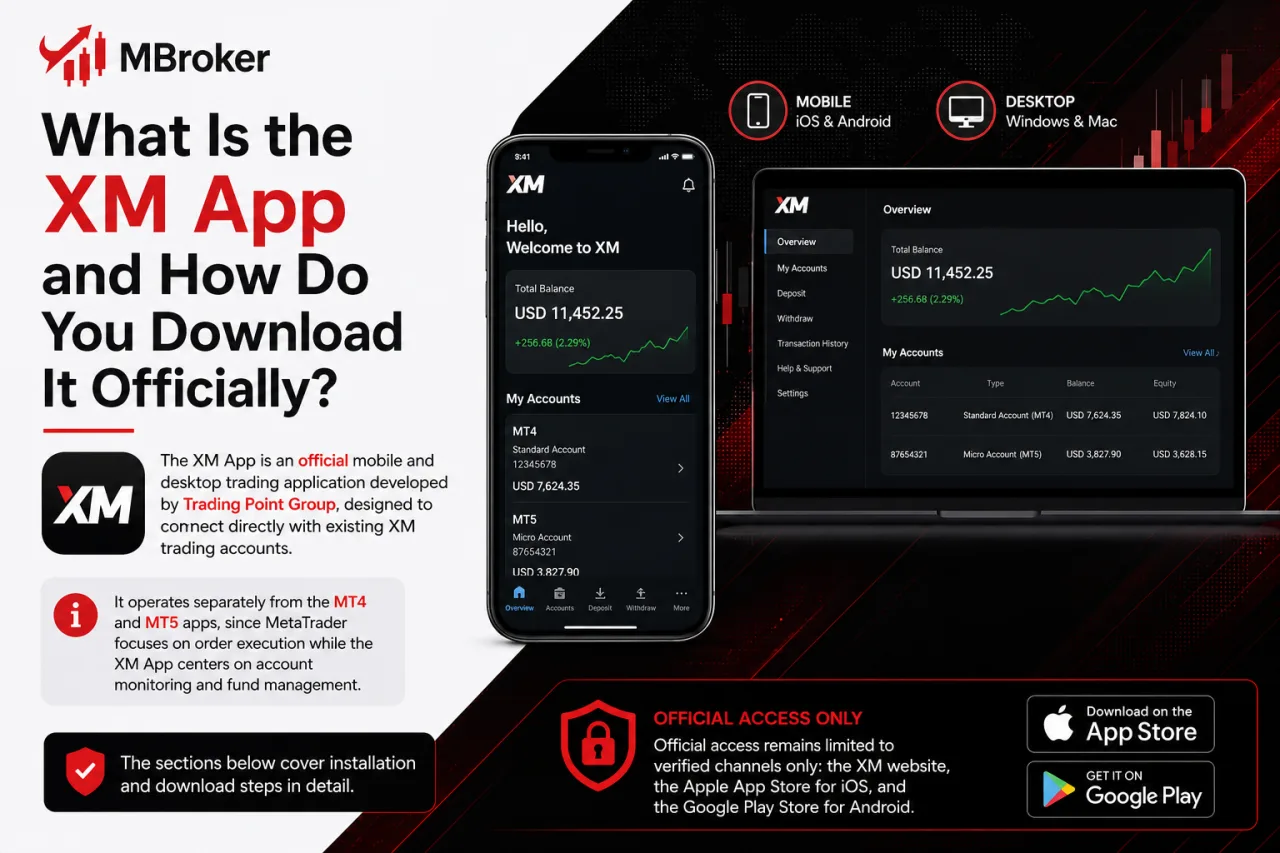
The XM App is an official mobile and desktop trading application developed by Trading Point Group, designed to connect directly with existing XM trading accounts. It operates separately from the MT4 and MT5 apps, since MetaTrader focuses on order execution while the XM App centers on account monitoring and fund management.
The sections below cover installation and download steps in detail. Official access remains limited to verified channels only: the XM website, the Apple App Store for iOS devices and Google Play for Android devices.
Downloading from unofficial sources or third-party APK repositories risks installing modified or unsecured files. Users are advised to confirm the developer name matches Trading Point Group before installing.
Information reviewed as of 2025; readers should verify current app availability and official download links directly through XM’s website or the relevant app store before installing.
Is the XM App the Same as the Trading Point APK?
Yes, the XM App and the Trading Point APK refer to the same application, since “Trading Point” is simply the developer name listed under XM in official app-store entries. This naming detail often raises legitimacy questions, so it deserves a direct clarification.
Three points explain this connection:
- Trading Point Group operates as the corporate entity behind the XM brand, so its name appears in the developer field on Google Play and the App Store rather than “XM” itself.
- The package name and publisher details on Google Play match Trading Point Holdings or related XM group entities, confirming the file is not a third-party clone.
- Searching “Trading Point APK” alongside “XM App” typically leads to the same download listing, since both terms describe one product under different labels.
Users comparing app-store results should check that the developer field references Trading Point Group before installing, since unofficial APK files claiming the same name may originate from unverified sources.
How to Download the XM App on Android, iOS, Windows and Mac?
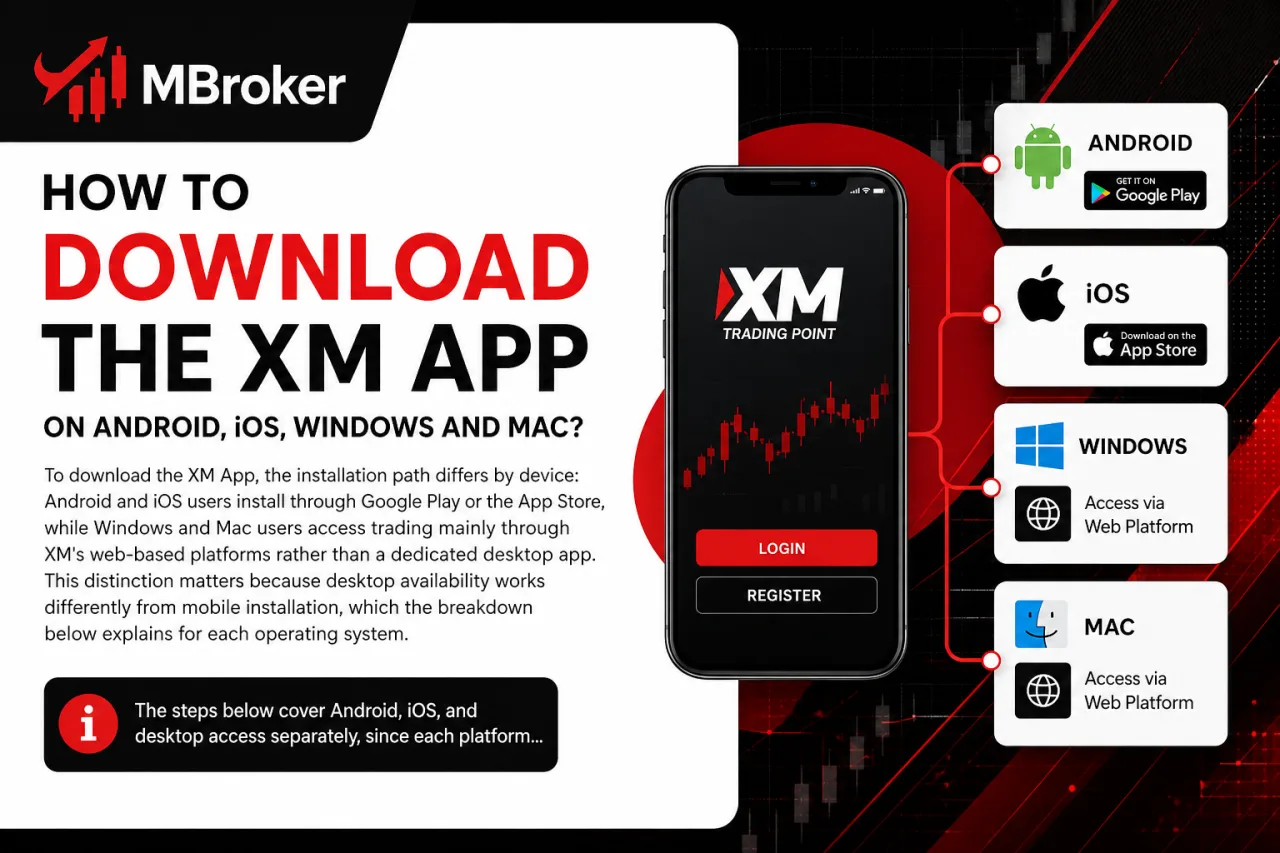
The XM App installation process differs by device: Android and iOS users can download it through Google Play or the App Store, while Windows and Mac users who prefer browser-based trading can access XM WebTrader without installing additional desktop software. This distinction matters because desktop availability works differently from mobile installation, which the breakdown below explains for each operating system.
The steps below cover Android, iOS, and desktop access separately, since each platform follows its own official channel and setup requirements.
What Are the System Requirements for Installing the XM App?
System requirements for the XM App cover minimum OS version, free storage space and a stable internet connection, with specific values varying by device type and listed on the app’s respective store page. These requirements determine whether a device can install and run the app without performance issues.
Official app-store listings typically specify the following baseline conditions:
- Android devices need a minimum operating system version as stated on the Google Play listing page.
- iOS devices need a minimum iOS version as stated on the Apple App Store listing page.
- Both platforms require sufficient free storage space to complete installation and store cached data.
- A stable internet connection through Wi-Fi or mobile data is required for login, real-time price updates and order-related account activity.
Windows and Mac users accessing XM’s web-based platforms instead of a dedicated desktop app need a supported browser version rather than an OS-specific install file.
Exact figures change as XM updates the app, so checking the current listing on Google Play or the App Store before installing confirms the latest minimum requirements for a specific device.
How to Log In to the XM App After Installation?
To log in to the XM App after installation, existing clients enter their XM account number, password and select the matching trading server, which connects the app to the correct account data. This login step determines whether the session pulls the right account balance and trading history, so the process deserves a closer look.
The login screen typically requests three pieces of information:
- Account number issued by XM during registration.
- Password created for the specific XM trading account.
- Trading server name matching the account type, since XM operates separate servers for different account categories.
Selecting the wrong server prevents login even when the account number and password are correct, since each server hosts a distinct set of accounts. Demo and live accounts run on different servers within the XM system, so a demo login credential does not access live account data and vice versa.
The app never requests sensitive verification codes or recovery phrases during this process, so any prompt asking for such details outside the standard login field warrants caution. Users unsure of their assigned server can locate it through the account confirmation email sent by XM or the client account portal.
What Features Does the XM App Offer for Trading and Account Management?
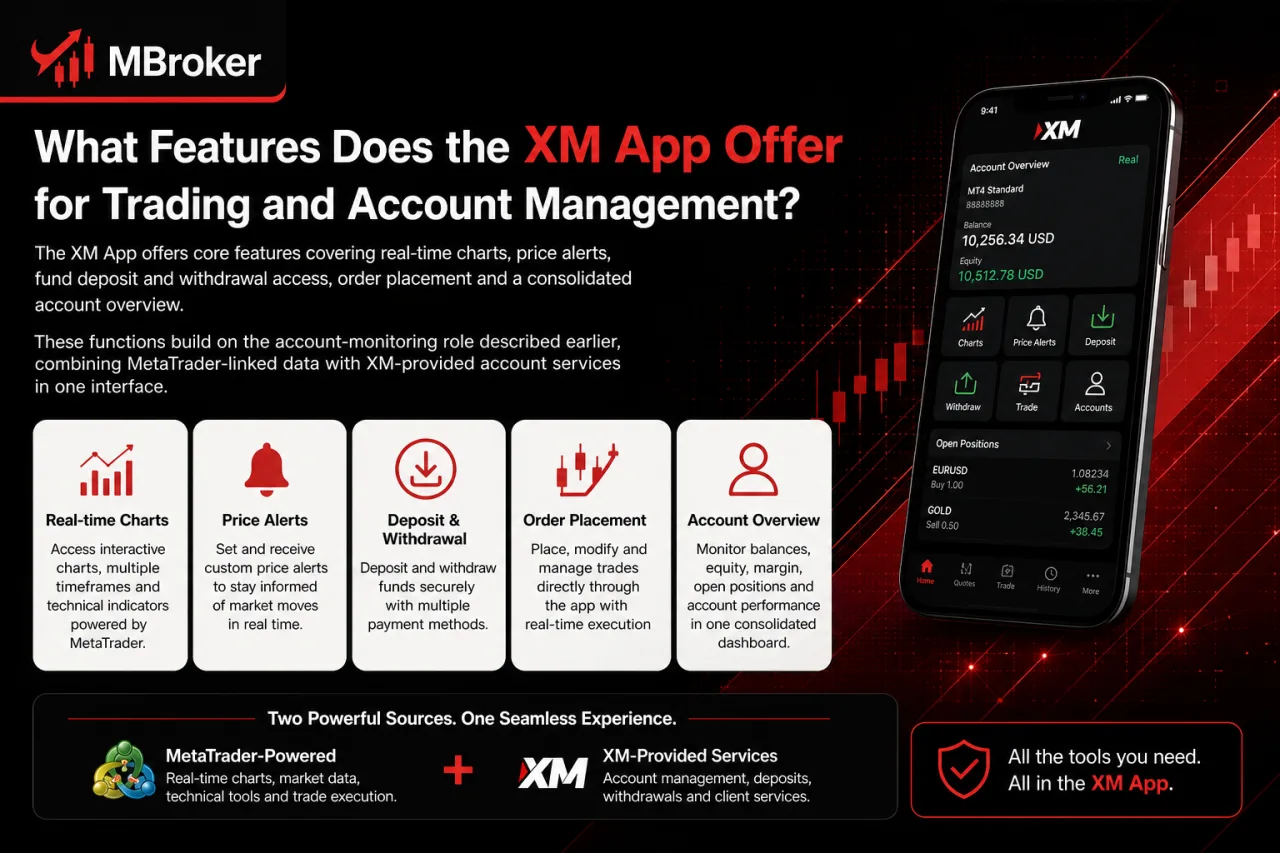
The XM App offers core features covering real-time charts, price alerts, fund deposit and withdrawal access, order placement and a consolidated account overview. These functions build on the account-monitoring role described earlier, combining MetaTrader-linked data with XM-provided account services in one interface.
Each feature serves a distinct purpose within the app, and the breakdown below separates what MetaTrader supplies from what XM manages directly through the app’s own account layer.
How Do Charting and Technical Analysis Tools Work in the XM App?
Charting and technical analysis tools in the XM App draw on real-time price data linked to the connected XM account, displaying line and candlestick charts across multiple timeframes with a set of basic indicators layered on top. This charting function ties directly into the account-monitoring role covered above, giving traders a visual read of price movement alongside the app’s fund and order features.
The chart section typically supports the following elements:
- Chart types include line and candlestick formats for viewing price action.
- Timeframes range from short intervals to longer daily or weekly views, letting users switch perspective on the same instrument.
- Indicators such as moving averages and oscillators plot calculated values over price history to highlight trend or momentum patterns.
- Zoom and scroll controls adjust the visible price range without altering underlying data.
These tools present historical and current price information only, without generating buy or sell signals or forecasting future price direction.
Traders using MT4 or MT5 alongside the XM App gain access to a broader indicator library and more advanced charting objects, since MetaTrader platforms are built specifically for technical analysis and order execution.
Users confirm the current set of available chart types and indicators directly within the app, as feature availability changes with app updates.
How Do Alerts and Notifications Function in the XM App?
Alerts and notifications in the XM App function by triggering pop-up or push messages when a set price level, account event or trade update occurs, based on conditions the user configures within the app. This alert system ties directly into the charting and account-overview functions covered above, extending them into a real-time notification layer.
Setting up an alert typically follows a short sequence:
- Open the chart or instrument screen for the asset requiring monitoring.
- Enter the target price level that triggers the alert once the market reaches it.
- Choose the notification format, such as an in-app pop-up or a push notification sent to the device.
- Save the alert so it remains active until triggered or manually removed.
Account-related notifications work separately from price alerts. These cover events such as deposit confirmations, withdrawal status updates or order execution results tied to the connected trading account.
These messages originate from XM’s account system rather than MetaTrader’s price-feed engine, since MT4 and MT5 handle market alerts through their own built-in functions when used independently. Users confirm current alert options and notification settings directly within the app, as available triggers vary by app version and device operating system.
XM App vs MT4 vs MT5: What Are the Key Differences for Mobile Trading?
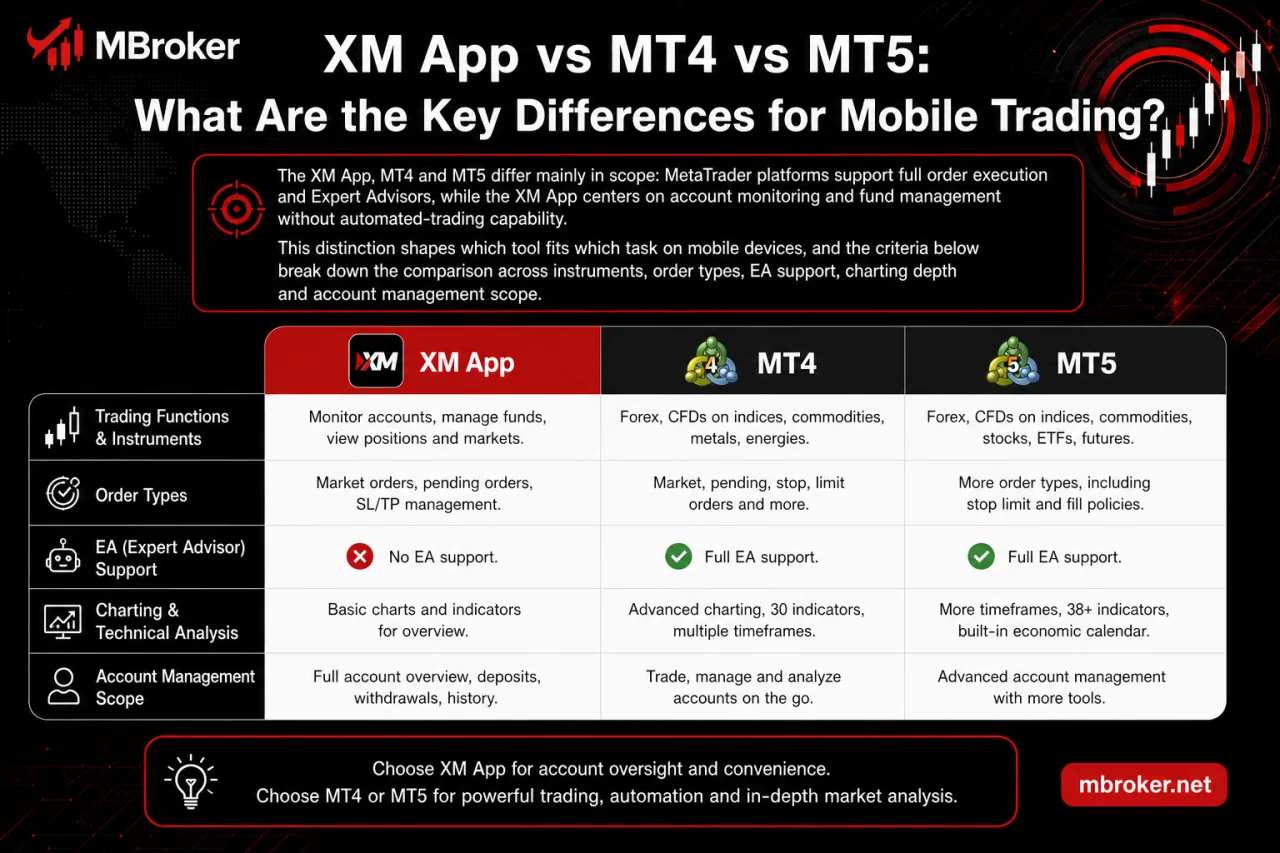
The XM App, XM MT4 and MT5 differ mainly in scope: MetaTrader platforms provide advanced order execution and Expert Advisor support on compatible desktop terminals, while the XM App focuses on mobile trading and account management without running Expert Advisors directly. This distinction shapes which tool fits which task on mobile devices, and the criteria below break down the comparison across instruments, order types, EA support, charting depth and account management scope.
MT4 and MT5 support a broader range of order types and instruments than the XM App, since both MetaTrader platforms execute trades directly while the XM App primarily displays account and market data. MT5 additionally offers more order-filling policies and a wider timeframe selection than MT4, reflecting its later development as a multi-asset platform.
Key functional differences include:
- Order execution: MT4 and MT5 process market, pending and stop orders directly; the XM App focuses on viewing positions rather than placing complex order types.
- Expert Advisor support: MT4 and MT5 run automated trading strategies through EAs; the XM App does not support EA execution.
- Charting depth: MT4 and MT5 provide extensive indicator libraries and custom chart objects; the XM App offers basic charting for price monitoring, as covered earlier.
- Account management: the XM App consolidates deposits, withdrawals and account overview in one place, a function MetaTrader apps do not handle directly.
No single platform suits every mobile trading task, since order execution and automated strategies require MT4 or MT5 while account oversight and fund management run through the XM App.
Does the XM App Support Expert Advisors and Automated Trading?
No, the XM App does not support Expert Advisors or automated trading, since this function requires MT4 or MT5, the platforms XM designates specifically for order execution and algorithmic strategies. This gap connects directly to the scope difference outlined above, and three points clarify why the XM App stays outside EA territory.
- Architecture: the XM App runs as an account-monitoring and fund-management client, not a trading terminal built to host or execute EA code.
- Scripting environment: MT4 and MT5 provide the MQL4/MQL5 environment required to build, backtest and run Expert Advisors, a layer absent from the XM App.
- Official documentation: XM and MetaTrader materials list EA support under MT4/MT5 platform features only, without extending it to the XM App interface.
Traders using Expert Advisors can run automated strategies through compatible MT4 or MT5 desktop terminals while using the XM App for account monitoring. Those interested in following other traders’ strategies can also explore our XM Copy Trading guide, which explains trade replication, Strategy Managers, and account eligibility requirements.
What Uncommon Issues or Advanced Settings Should XM App Users Know About?
XM App users encounter three uncommon but relevant areas: regional availability tied to the XM legal entity governing their account, installation or login errors with official fixes, and security settings such as biometric login and session timeout. These points sit outside daily app use but matter once a device, region or account setup falls outside the standard case. The sections below cover each area separately, starting with how app availability shifts across XM’s regulated entities.
Why Might the XM App Be Unavailable in Certain Regions or App Stores?
Yes, the XM App becomes unavailable in certain regions or app stores mainly because XM operates through separate legal entities, each governed by its own regulator and country-specific rules. Availability ties back to which entity services a client’s account, so the app listing seen in one location may differ from another.
Three factors explain this pattern:
- Regulatory scope: each XM legal entity holds licensing from a specific regulator, and app-store distribution follows that entity’s approved territories.
- App-store filtering: Google Play and the App Store display listings based on the device’s registered country, which can hide the app where XM does not operate.
- Entity-account mismatch: a trading account opened under one XM entity may not sync properly with an app version distributed for a different entity’s territory.
Users encountering unavailability confirm current access and entity coverage through XM’s official website rather than assuming a permanent restriction.
How to Fix Common XM App Login or Connection Errors?
To fix common XM App login or connection errors, users check the entered account number, password and server selection first, then confirm internet connectivity before contacting XM support. This troubleshooting process addresses the error scenarios flagged earlier without pointing to speculative causes outside official channels.
A short sequence covers most cases:
- Recheck the account number and password for typos, since incorrect credentials trigger the most frequent login failure.
- Confirm the trading server matches the account type, as a mismatched server blocks login even with correct credentials.
- Test the internet connection through Wi-Fi or mobile data, since unstable connectivity interrupts login or real-time updates.
- Update the app to its latest version through Google Play or the App Store, as outdated builds sometimes lose server compatibility.
- Restart the device if the app fails to load after connectivity and credential checks pass.
If these steps fail to resolve the issue, users contact XM’s official support team directly through the XM website’s live chat or help center, rather than third-party forums or unverified fixes.
Conclusion: Is the XM App Worth Using?
The XM App is a practical companion for XM clients who want to monitor markets, receive alerts and manage their accounts from one interface. However, traders who require advanced charting, complex order types or Expert Advisors should use MT4 or MT5 alongside the app. For secure access, download the application only from XM or an official app store, verify that Trading Point Group is listed as the developer and log in with the correct account credentials and trading server.
Since features and regional availability may vary, users should confirm the latest options for their device and assigned XM legal entity before installation. Readers can learn more about our independent editorial approach, research standards, and XM trading platform resources on the About Mbroker page.

Sylas Trenven is the XM Trading Platform & Markets Editor at Mbroker, specializing in Forex trading platforms, financial instruments, and market-related research. He focuses on analyzing MetaTrader 4, MetaTrader 5, trading technology, and XM market conditions to provide accurate, practical, and accessible information for Forex and CFD traders.