
 Tiếng Việt

The official XM login page is accessed through the Members Area portal linked directly from XM’s official website, xm.com. Traders enter their registered email and password on this page to reach account dashboards, verification tools and fund management options.
XM trading platforms MT4 and MT5 require separate login credentials generated after opening a live or demo trading account. These credentials include a unique account number, a trading password and the correct server name, which differ from the Members Area login used for account management.
XM Affiliate and Partner accounts use a dedicated login portal separate from the standard trader Members Area. Affiliates access commission reports, marketing tools and referral tracking through this distinct system, which requires its own registration and credential set.
Forgotten passwords, invalid credentials or account lockouts should be resolved through XM’s official password recovery and support channels rather than third-party login pages. Mbroker outlines each of these login paths clearly, starting with how to reach the official XM login page and sign in to the Members Area.
How Do You Access the Official XM Login Page and Log In to the Members Area?
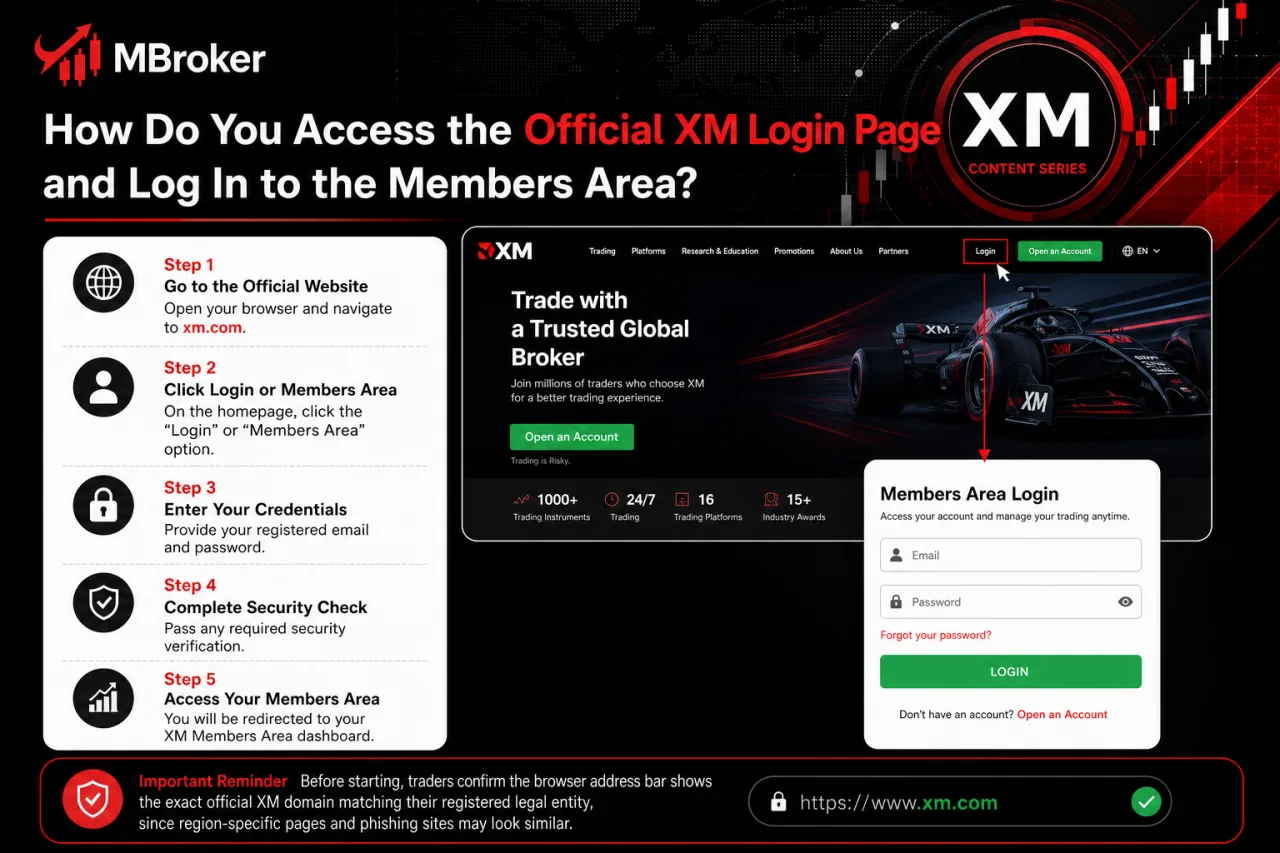
To access the official XM login page, users navigate to xm.com and select the Login or Members Area option displayed on the homepage. This overview covers the correct entry point and the general sign-in flow, while the specific sub-steps for entering credentials, passing security checks and reaching the dashboard are detailed further below.
Before starting, traders confirm the browser address bar shows the exact official XM domain matching their registered legal entity, since region-specific portals can differ slightly in appearance and web address. Having the registered email and account password ready avoids interruptions during sign-in. Once submitted correctly, the system routes the user directly into the Members Area dashboard, showing account overview, verification status and fund management tools. Newer traders sometimes bookmark the login page after their first successful session to avoid searching for it repeatedly, while more experienced users often keep multiple browser profiles open to switch between live and demo account logins quickly. Because login flows can vary by XM entity or regional regulation, readers are reminded to verify the current process directly on the official XM website tied to their account registration.
What Do You Need Before Logging In to XM?
Logging in to XM requires a registered email address and the account password created during sign-up, both entered on the official Members Area page. This addresses the core prerequisite for reaching the XM login screen, with a few related conditions worth confirming beforehand.
The account itself must already exist through XM’s registration process, since the login page grants access only to accounts already created, whether the registration stands as a demo or a live trading profile. Verification status does not block login access itself, but certain dashboard features, such as withdrawals, stay restricted until identity and address checks clear.
Traders keep these items ready before signing in:
- Registered email address used during account creation
- Account password set at registration or updated afterward
- Stable internet connection and an updated browser
No login step ever requires sharing one-time passcodes, full card numbers or the account password with anyone claiming to represent XM support. Genuine XM staff never request these details through email, chat or phone, so users treat any such request as a phishing attempt and report it through official XM support channels instead.
Is the XM Members Area Login the Same for All XM Trading Accounts?
Yes, one XM Members Area login grants access to all live and demo trading accounts registered under the same client profile. This clarifies whether the login screen changes depending on account type or number of accounts held.
Traders opening multiple live accounts or additional demo accounts under one profile use the same registered email and password to reach every linked account from a single dashboard. Switching between accounts happens inside the Members Area itself, without logging out or entering separate credentials for each one.
Legal entity and regional registration still shape what appears after login. Available instruments, leverage options and certain account features depend on which XM entity holds the client’s registration, so two traders signed up under different regions may see different dashboard options despite using an identical login process.
Because these details vary by jurisdiction and account setup, confirming the exact scope of a Members Area login stays best done through the official XM website tied to the specific registered entity.
How Do You Log In to XM Trading Platforms (MT4/MT5) Using Your Account Credentials?
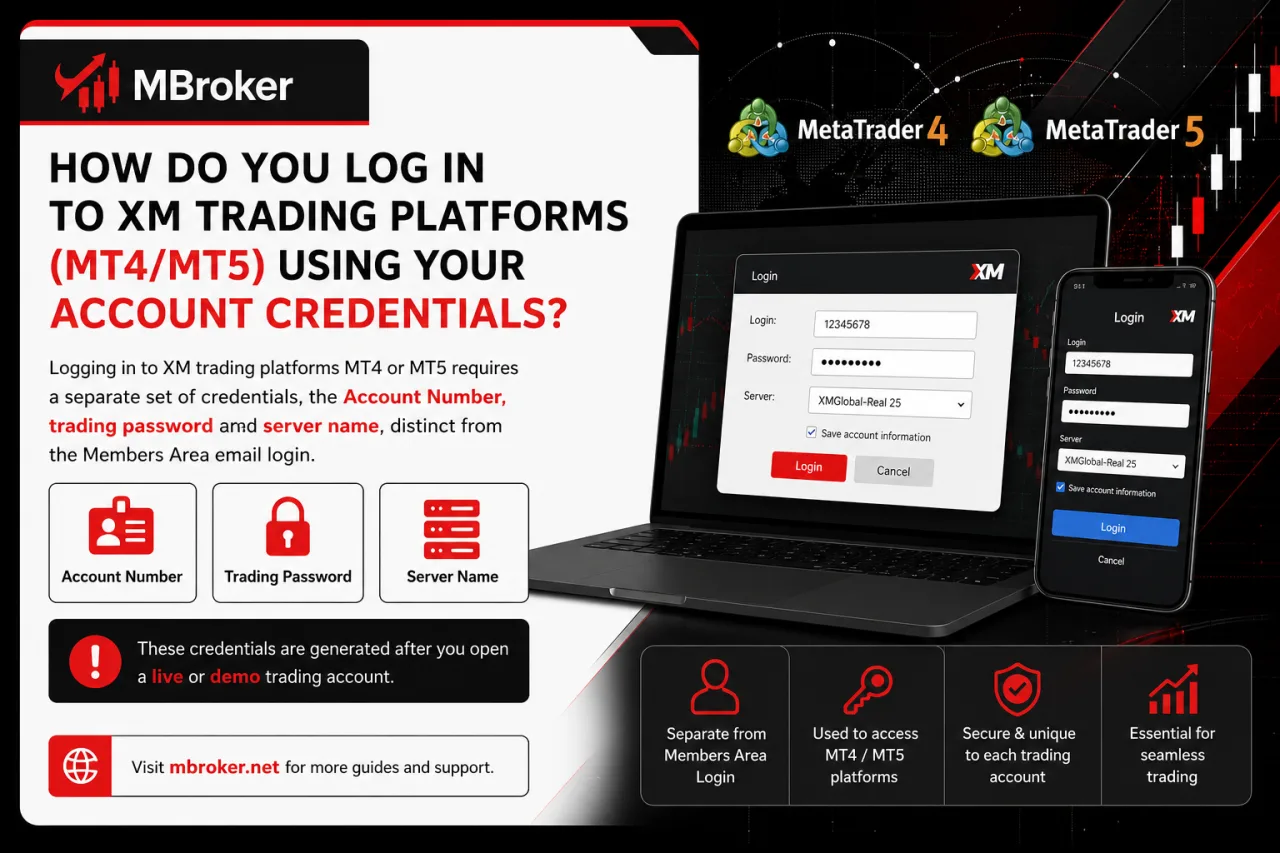
Logging in to XM trading platforms MT4 or MT5 requires a separate set of credentials, the Account Number, trading password and server name, distinct from the Members Area email login. This overview covers where these credentials originate and how the sign-in flow differs from the web portal login already described above, with the exact retrieval steps and login sequence broken down in the sections below.
Traders generate these platform credentials only after opening a live or demo trading account through the Members Area, since MT4/MT5 access never opens directly from an email and password combination. The Members Area dashboard stores these details for each linked account, letting traders retrieve them whenever a new device or platform installation requires re-entry. Because MT4 and MT5 run as separate trading terminals from the account management portal, mixing up the two credential sets is one of the most common login errors new traders encounter.
What Is the Difference Between Members Area Login and MT4/MT5 Platform Login?
Members Area login manages account settings and funds using email and password, while MT4/MT5 login executes trades using Account Number, trading password and server name. This distinction separates administrative access from actual trading execution across the two XM systems.
The Members Area functions as the account management hub, where traders verify identity, deposit or withdraw funds, open additional accounts and adjust profile details, all reached through the standard email and password combination described earlier. MT4 and MT5, by contrast, exist purely as trading terminals, opening charts, placing orders and monitoring positions once the correct Account Number, trading password and server name are entered.
Access points differ as well. The Members Area login sits on the official XM website through a browser, whereas MT4/MT5 login happens inside the downloaded desktop application, mobile app or web-based trading terminal itself.
- Purpose: managing account and funds versus executing live or demo trades
- Credentials: email and password versus Account Number, trading password and server name
- Access point: XM website Members Area versus MT4/MT5 platform application
Because these two logins serve different functions, traders keep both sets of credentials on hand separately rather than assuming one grants access to the other.
Where Can You Find Your MT4/MT5 Login Details Inside the Members Area?
MT4/MT5 login details sit inside the Members Area dashboard, typically under an account summary or “My Accounts” section listing each linked trading account. This section explains where these credentials appear once logged in, building directly on the platform login distinction covered above.
Each trading account entry displays its Account Number alongside the assigned server name, both required for MT4/MT5 sign-in on desktop, mobile or web terminals. Trading passwords do not display in plain text for security reasons; instead, the dashboard offers a reset or “change investor/trading password” option, generating a new password sent through the account’s secure channel.
Traders locate these details by following a few consistent steps:
- Log in to the Members Area using the registered email and password
- Open the account list or dashboard section showing linked trading accounts
- Select the specific live or demo account to view its Account Number and server name
- Use the password reset option if the trading password needs updating
Since dashboard layouts and labels can shift with platform updates, confirming the exact navigation path stays best done directly on the official XM website tied to the registered account.
How Do You Access the XM Affiliate/Partner Login Separately from the Trader Login?
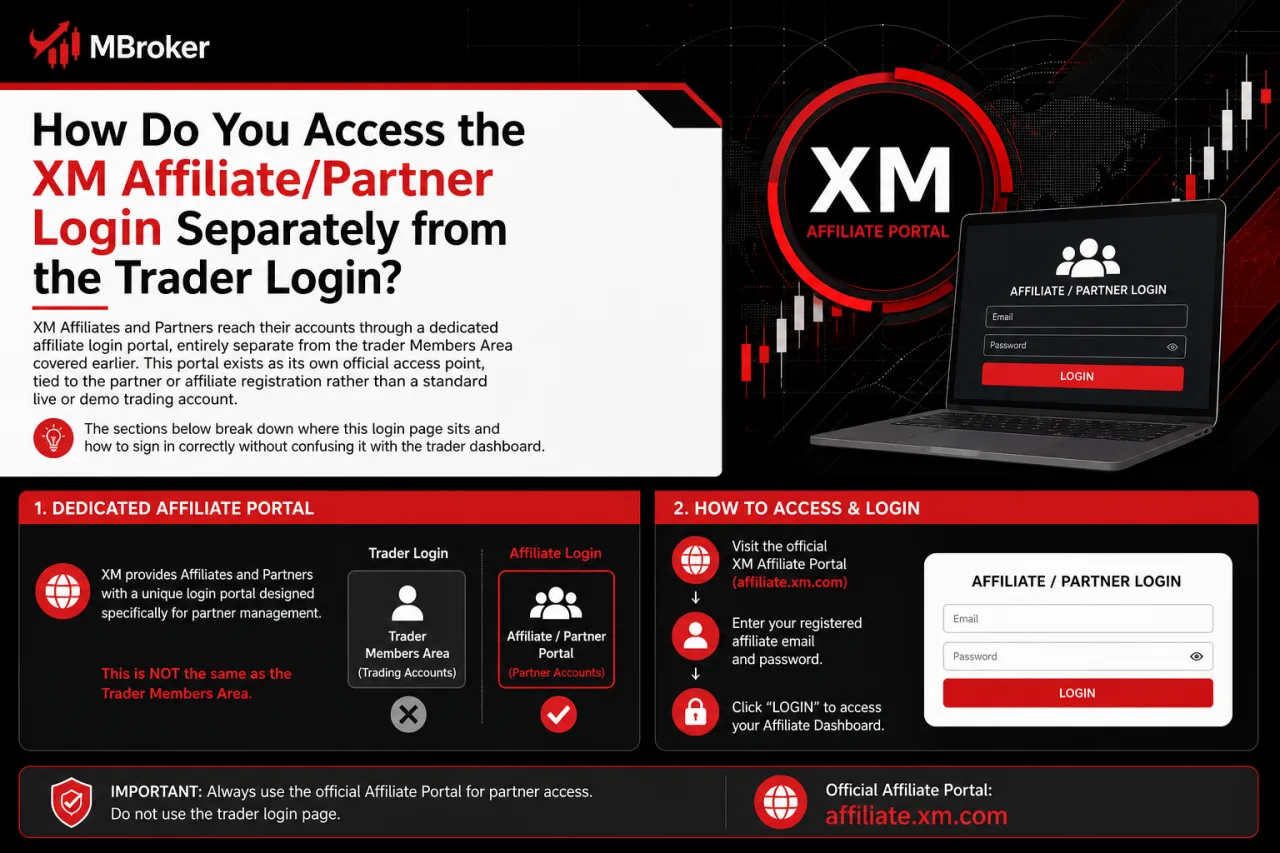
XM Affiliates and Partners reach their accounts through a dedicated affiliate login portal, entirely separate from the trader Members Area covered earlier. This portal exists as its own official access point, tied to the partner or affiliate registration rather than a standard live or demo trading account. The sections below break down where this login page sits and how to sign in correctly without confusing it with the trader dashboard.
Is the XM Affiliate Login the Same Account as the XM Trader Login?
No, the XM Affiliate/Partner login and the XM trader Members Area login stay as two separate account systems, even when linked to the same email address. This confirms whether signing up as an affiliate automatically merges with an existing trading profile.
Three reasons keep these portals distinct:
- Registration process: affiliate status requires its own partner application, separate from opening a demo or live trading account
- Credential handling: each portal issues and stores its own login session, so signing in to one does not carry over access to the other
- Dashboard content: the affiliate portal shows commission reports and referral tracking, while the trader Members Area shows fund management and verification tools
A trader who also becomes an affiliate under the same email typically switches between two separate logins rather than one combined dashboard. Anyone uncertain whether their accounts link together confirms the exact setup directly with official XM support rather than assuming based on shared registration details.
How Do You Troubleshoot XM Login Issues Like a Forgotten Password or Invalid Credentials?
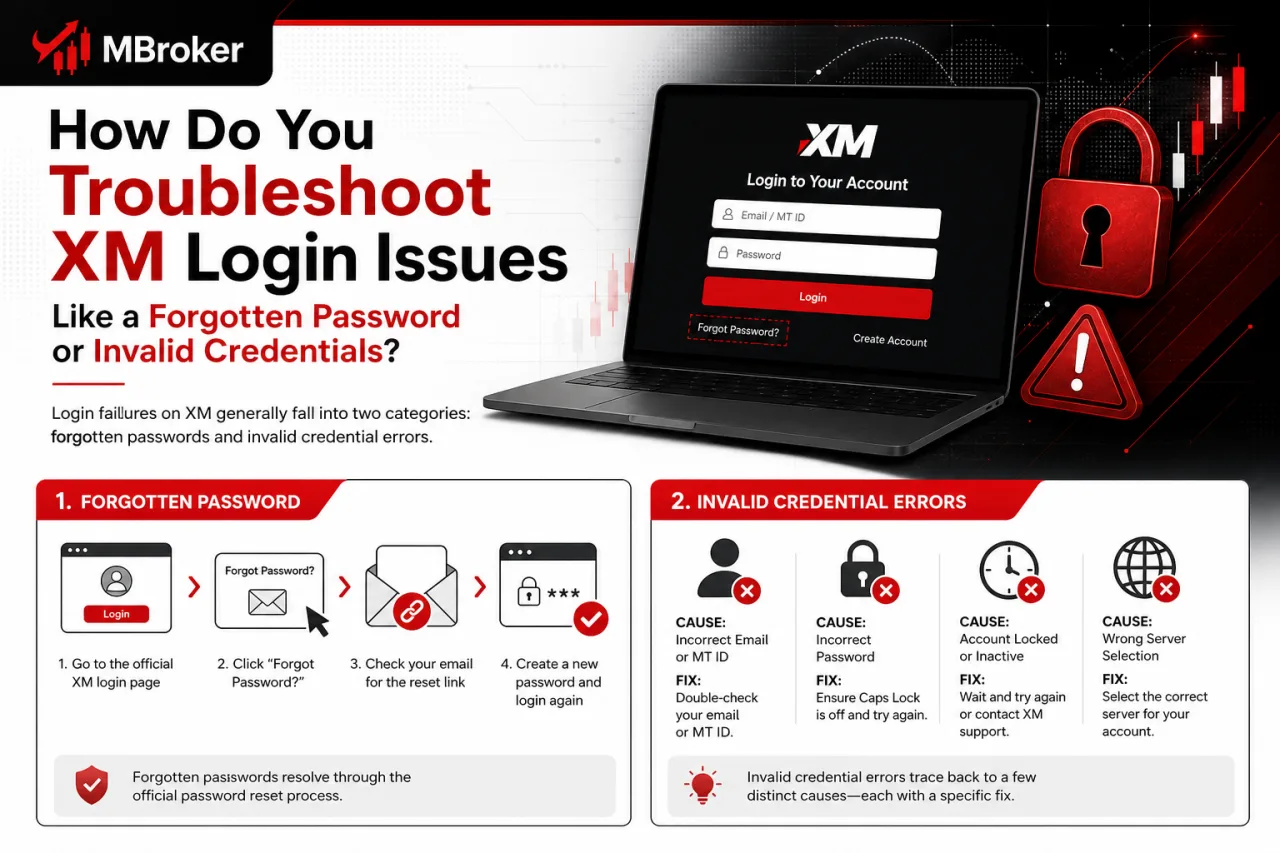
To troubleshoot XM login issues, users select the “Forgot Password” link on the official login page and follow the reset process, while invalid credential errors trace back to a few distinct causes. This section separates password recovery from credential-mismatch problems, with each cause and its fix broken down in the sub-sections below.
Login failures on XM generally fall into two categories: forgotten passwords and invalid credential errors. Forgotten passwords resolve through the official reset flow starting on the Members Area login page. Invalid credential errors, by contrast, stem from separate root causes that each require a different check before retrying the sign-in attempt. When neither path resolves the issue, escalating to official XM support becomes the next step, always without sharing the password or any one-time code during that contact.
What Are the Common Reasons an XM Login Attempt Fails?
XM login attempts fail for five common reasons: incorrect email or password, an unverified or inactive account, use of the wrong login portal, browser or cache errors, and temporary account restrictions. These causes span both the Members Area and the trading platform logins covered earlier, so isolating which category applies narrows down the fix quickly.
- Incorrect email or password: typos, outdated saved credentials or case-sensitive entry errors block sign-in on the Members Area page
- Unverified or inactive account: a newly registered profile that has not completed the required activation step restricts full login access
- Wrong login portal: entering Members Area credentials into MT4/MT5 fields, or affiliate credentials into the trader dashboard, triggers a mismatch error
- Browser or cache issues: outdated cached data, expired cookies or an unsupported browser version prevents the login page from loading or submitting correctly
- Temporary account restriction: security flags, suspicious activity checks or compliance holds lock access until XM support clears the account
Clearing cache, confirming the correct portal and double-checking credentials resolves most cases, while restriction-related lockouts require direct contact with official XM support.
When Should You Contact XM Support About a Login Problem?
Users contact official XM support once password reset and standard troubleshooting steps fail to restore login access. This threshold marks the point where self-service fixes stop working and the issue likely traces back to account restrictions or a technical problem on XM’s side rather than a simple credential error.
Escalation to XM support applies in specific situations:
- Persisting invalid credential errors after confirming the correct portal, clearing browser cache and resetting the password
- Locked or restricted accounts flagged for security review or compliance holds
- Missing password reset emails despite checking spam folders and confirming the registered address
- Suspected unauthorized access or phishing attempts affecting the account
When reaching out, traders share only verifiable account information such as the registered email, full name and account number to confirm identity. Passwords, one-time codes and full card details never get shared with support staff, since genuine XM representatives never request these items during a support interaction. Contacting XM directly through the official website’s support channel stays the safest route, rather than relying on search results or third-party contact listings.
What Security Precautions Should You Follow When Logging In to XM?
Safe XM login practice rests on five precautions: verifying the official domain, avoiding third-party login links, enabling available account security features, recognizing phishing attempts and never sharing passwords or one-time codes with anyone. These precautions apply across the Members Area, MT4/MT5 and affiliate logins already covered above, since each portal carries the same phishing and credential-theft risks. The sub-sections below break down each precaution individually.
How Can You Identify a Fake or Phishing XM Login Page?
To identify a fake or phishing XM login page, users verify the exact domain name, confirm a valid SSL certificate and reach the page only through XM’s official website rather than an email or advertisement link. This check addresses the security risk of fraudulent pages designed to steal Members Area credentials.
Three checks confirm a login page stays genuine:
- Checking the address bar for the exact official XM domain, watching for misspellings, extra characters or unfamiliar subdomains
- Confirming a valid SSL certificate through the padlock icon, since a missing or invalid certificate signals an unsecured or fraudulent page
- Navigating to the login page by typing the official XM website address directly or using a saved bookmark, rather than clicking links sent through email, SMS or social media ads
Credentials never get entered on a page reached through an unsolicited message, since genuine XM communications direct users back to the official website rather than embedding a login form. Any doubt about a login page’s authenticity gets resolved by closing the page and navigating manually to the official XM website tied to the registered account.
Conclusion: How Should You Log In to XM Safely?
Logging in to XM is straightforward when users choose the correct official portal and enter the appropriate credentials. The Members Area requires the registered email and password for account management, while MT4 and MT5 use a trading account number, trading password and assigned server. Affiliate and Partner accounts must be accessed through their separate portal. If login problems occur, users should verify the portal, check their credentials, clear browser data or use XM’s official password-recovery process before contacting support. Most importantly, always confirm the official XM domain and never share passwords, one-time codes or complete payment details. Understanding these separate login systems helps users access their accounts securely and resolve common sign-in issues more efficiently.

Thoren Vextal is Mbroker’s XM Reviews and How-To Guides Editor, covering broker reviews, regulation, comparisons and practical account guides.Email: [email protected]