

Verifying an XM trading account requires submitting a valid proof of identity document and a proof of address document through the XM Members Area for review.This process confirms a client’s identity and residential address, and it must be completed before a live account can deposit funds or trade.
An XM account’s verification status is checked by logging into the Members Area and viewing the account status or document verification section, where an approved, pending or rejected label indicates the current stage.This status updates only after XM’s compliance team finishes reviewing the submitted documents.
Starting or checking XM account verification requires signing in to the official XM Members Area using a registered email and password. Once logged in, the account holder can upload documents, track their review progress or resubmit files if a previous attempt was rejected.
Passing XM account verification requires a government-issued photo ID and a recent proof of address document dated within the last few months. Accepted proof of identity typically includes a valid passport, national ID card, or driver’s license, while proof of address documents such as utility bills or bank statements are generally required to be recently issued to remain valid for verification purposes. Accepted formats and specific document conditions vary by country and legal entity, so confirming the exact list before submission avoids unnecessary rejections. The sections below from Mbroker break down the complete verification process, how to check account status and how to access the Members Area correctly.
How Do You Verify Your XM Trading Account?
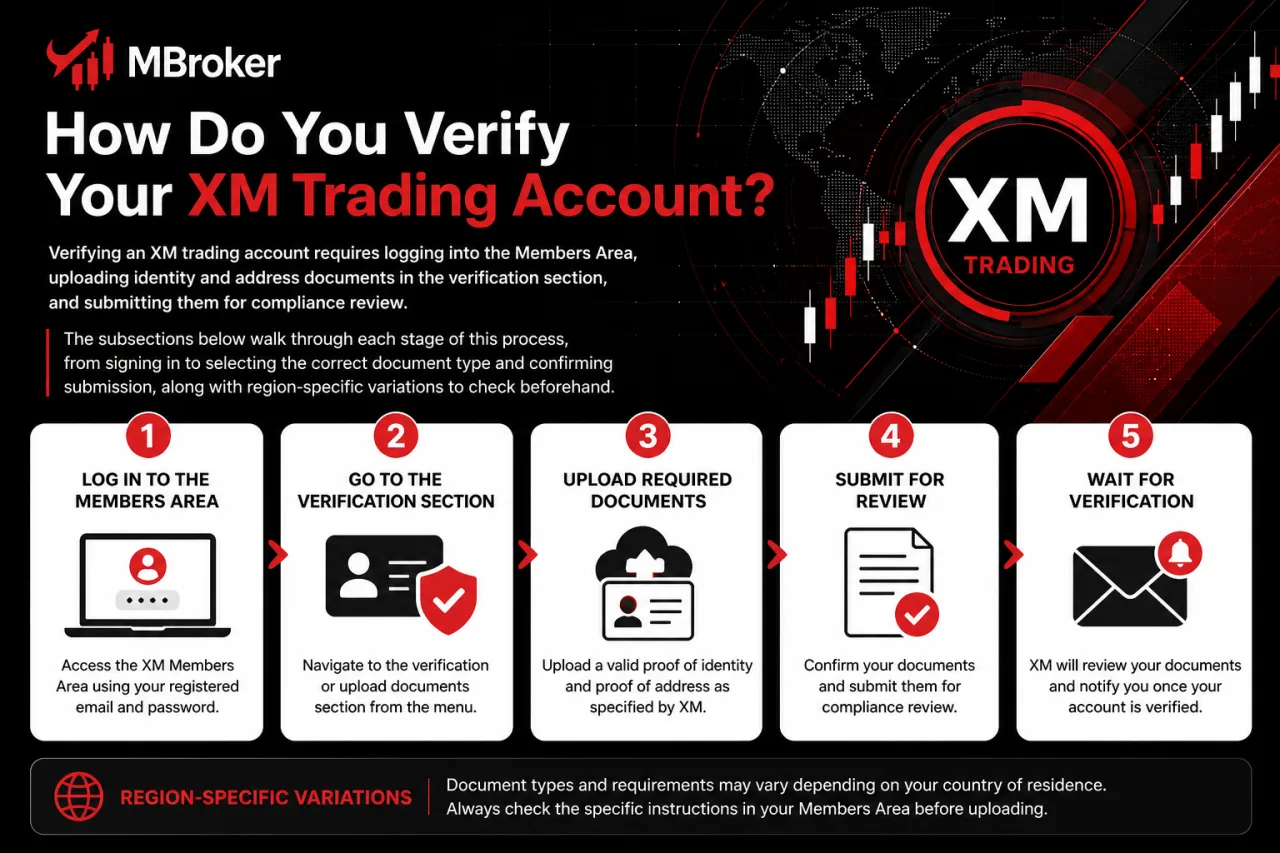
Verifying an XM trading account requires logging into the Members Area, uploading identity and address documents in the verification section, and submitting them for compliance review. The subsections below walk through each stage of this process, from signing in to selecting the correct document type and confirming submission, along with region-specific variations to check beforehand.
Who Is Eligible to Complete XM Verification?
XM verification applies to clients who have already registered a live trading account under an eligible XM legal entity. New applicants can follow our XM Register guide to complete the account registration process before submitting identity documents. This requirement ties directly into the login and document-upload process described above, since only a registered account holder can access the verification section in the Members Area.
A few conditions narrow down who qualifies:
- Applicants hold a live account registered with an XM entity operating in their country of residence.
- Applicants submit documents in their own name, matching exactly the full name entered during registration.
- Applicants meet the minimum age and legal capacity required to open a trading account under the applicable jurisdiction.
Mismatched names, expired registration details or accounts opened under an unsupported region typically delay approval or trigger a rejection. Confirming that the registered legal entity supports verification for a specific country avoids this issue before documents are submitted.
What Is the Official Starting Point to Begin Verification?
The official starting point for XM verification is the Members Area login page accessed directly through XM’s official website, xm.com, using registered account credentials. This access point ties directly into the eligibility and login steps described above, since document upload only becomes available after signing in through this verified channel.
A few points confirm this starting point before beginning verification:
- Bookmarking the official XM domain avoids landing on cloned or phishing pages designed to steal login credentials.
- Checking that the login page matches the legal entity under which the account was registered prevents access errors during document submission.
- Avoiding links from unsolicited emails, social media ads or third-party sites keeps the login process limited to XM’s verified infrastructure.
No unofficial portal, broker comparison site or affiliate link ever replaces the Members Area as the entry point for submitting verification documents. Account holders unsure of the correct regional login page confirm it directly through XM’s official website rather than relying on search results or forwarded links.
What Are the Steps to Upload and Submit Verification Documents?
Uploading and submitting XM verification documents involves four sequential actions: selecting the correct document category, capturing a clear file, confirming accuracy, and submitting for review. This sequence follows directly from the Members Area login covered earlier, since the upload section only opens after the account holder signs in successfully.
- Select the document category matching the required file, choosing between proof of identity and proof of address in the verification section.
- Capture or scan the document, keeping all four corners visible, text legible and the file free of glare or cropping.
- Confirm the uploaded file displays the correct name, date and document type before finalizing the submission.
- Submit the document through the Members Area interface and wait for the system to register the upload.
XM generally accepts standard image and PDF formats for uploaded documents, though exact file size and format limits vary by legal entity.
Once submitted, the account status changes to a pending review label while XM’s compliance team examines the files. This stage typically precedes an approved or rejected outcome shown in the Members Area.
What Should You Do If Document Upload or Submission Fails?
A failed XM document upload or submission typically resolves through re-uploading a corrected file or contacting XM support if the error persists. This troubleshooting step follows directly from the submission process described earlier, since an upload failure interrupts the pending review stage before it even begins.
Common causes behind a failed upload include:
- Unsupported file formats or oversized files that exceed the Members Area upload limit.
- Blurry, cropped or glare-affected images that make text on the document unreadable.
- Mismatched names between the uploaded document and the details entered during registration.
- Expired proof of address documents that fall outside the accepted date range.
When an upload fails, re-selecting the document category and re-uploading a corrected file typically resolves the issue immediately. If the error message persists after several attempts, or if the system rejects a document without a clear reason, contacting XM support through the official Members Area or listed contact channels clarifies the exact cause.
Sharing login credentials or one-time codes with anyone claiming to assist with verification is never a safe practice. XM support never requests this information to resolve an upload error.
How Can You Check If Your XM Account Is Already Verified?
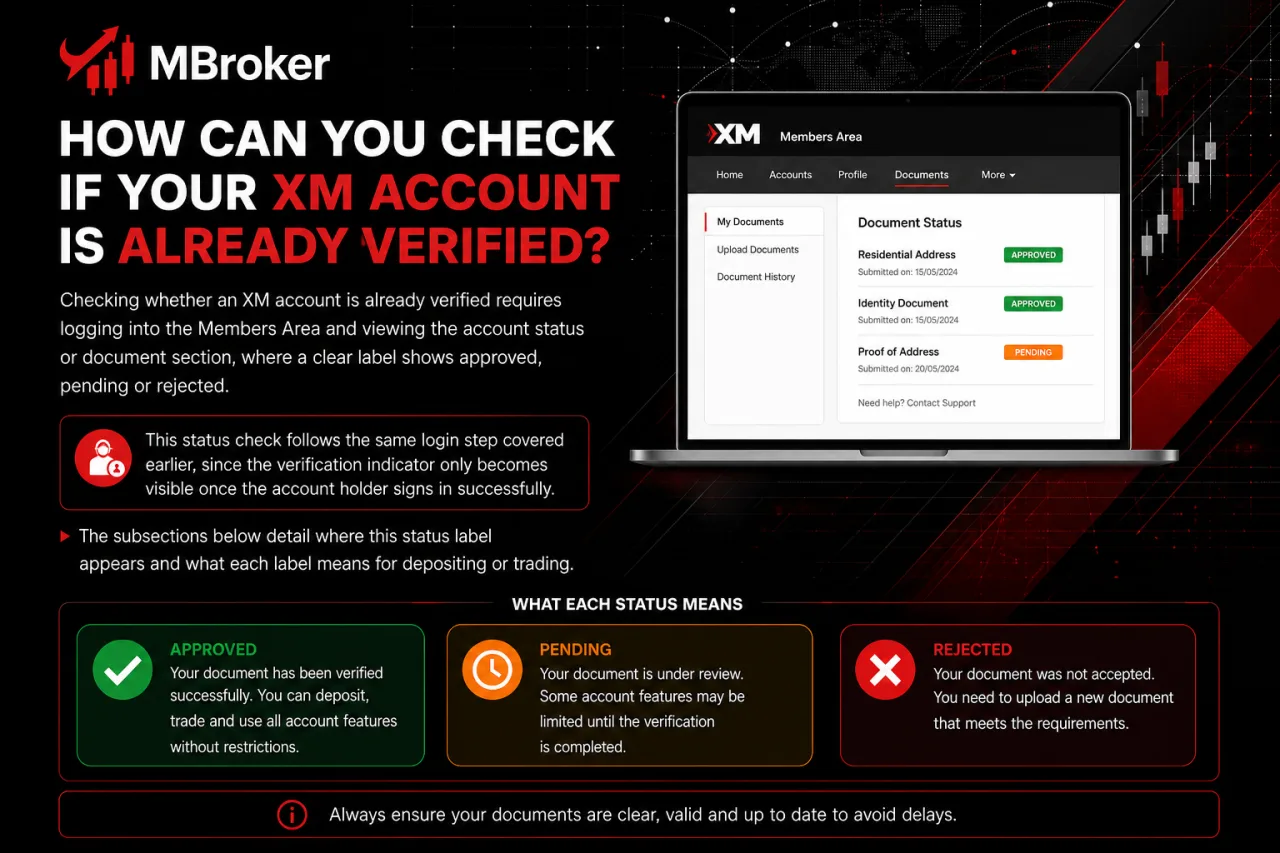
Checking whether an XM account is already verified requires logging into the Members Area and viewing the account status or document section, where a clear label shows approved, pending or rejected. This status check follows the same login step covered earlier, since the verification indicator only becomes visible once the account holder signs in successfully. The subsections below detail where this status label appears and what each label means for depositing or trading.
What Do the Different Verification Status Labels Mean?
XM verification statuses fall into three official categories: pending, approved, and rejected or resubmission required, each reflecting a distinct stage in the compliance review. This status label directly answers what an account holder sees after submitting documents, since the Members Area assigns one of these three terms once the upload process completes.
A pending label confirms XM’s compliance team has received the documents and has not yet finished reviewing them, so no action from the account holder is needed at this stage.
An approved status indicates that the identity and address documents have passed XM’s review, allowing eligible clients to proceed with account funding and live trading. Our XM Deposit guide explains the funding process, supported payment methods, and deposit requirements. A rejected or resubmission required label indicates one or both documents fail to meet XM’s requirements, whether due to image quality, mismatched names, or an expired address document.
When a rejected label appears, the Members Area typically displays a reason or prompt to resubmit, and re-uploading a corrected file through the same verification section addresses this outcome.
How Do You Log In to the XM Members Area to Start or Check Verification?
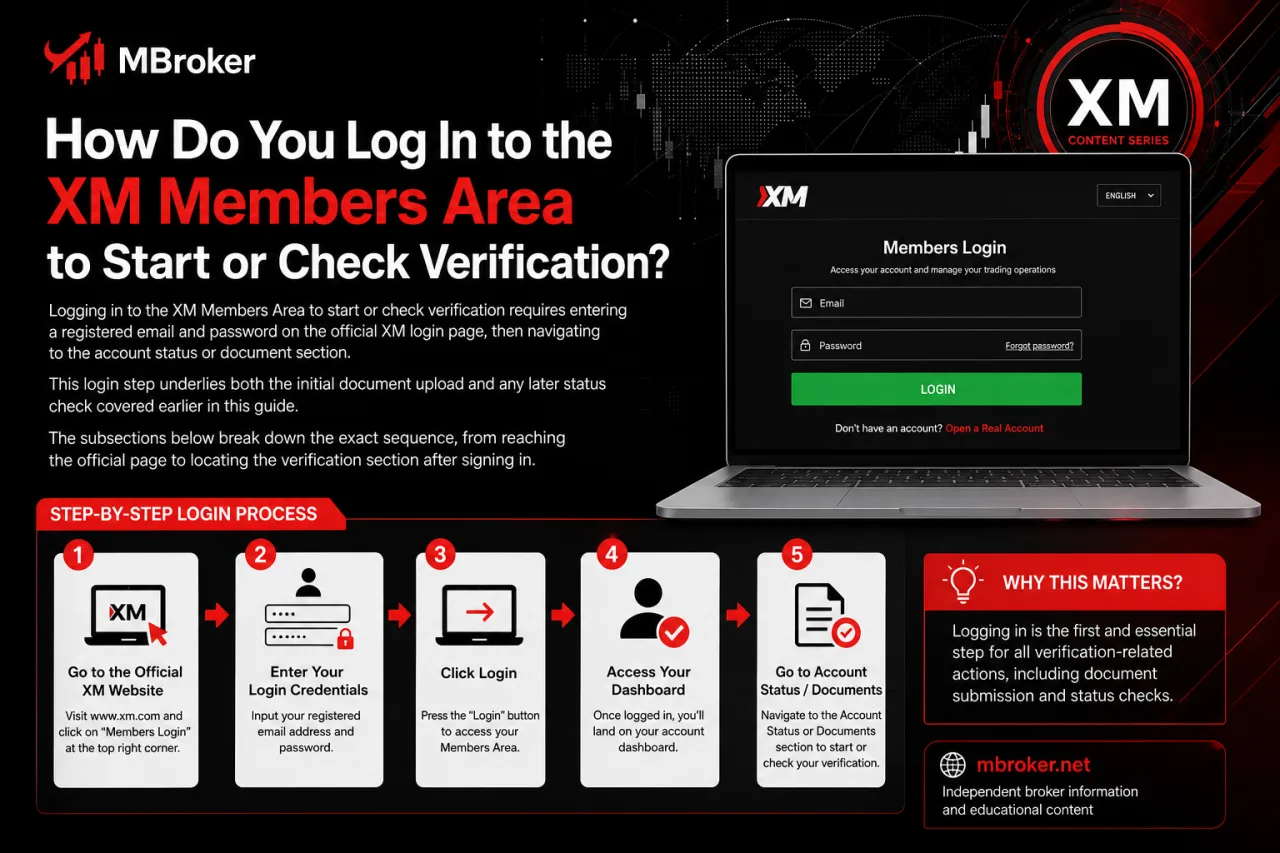
Logging in to the XM Members Area to start or check verification requires entering a registered email and password on the official XM login page, then navigating to the account status or document section. This login step underlies both the initial document upload and any later status check covered earlier in this guide. The subsections below break down the exact sequence, from reaching the official page to locating the verification section after signing in.
What Should You Do If You Cannot Log In to the Members Area?
A failed Members Area login resolves through the password recovery link on the login page or by contacting XM support if the issue persists. This troubleshooting step connects directly to the login process covered above, since neither verification uploads nor status checks become visible until access to the Members Area is restored.
A few common causes and fixes narrow down the issue:
- Confirming the email address matches the one used during registration rules out a simple typing error.
- Resetting the password through the official recovery link on the XM login page addresses a forgotten or incorrect password.
- Clearing browser cache or trying an alternative supported browser resolves page-loading or session errors.
- Contacting XM support through official Members Area channels applies when recovery steps fail to restore access.
Account holders never share their password or one-time codes with anyone during this process, including individuals claiming to represent XM support.
What Documents Are Required to Complete XM Account Verification?
Completing XM account verification requires two main document categories: proof of identity and proof of address, each confirming a distinct piece of client information. This documentation requirement connects directly to the upload steps covered earlier, since the Members Area separates these two categories into distinct submission fields. The subsections below detail the accepted document types, validity conditions and country-specific variations for each category.
What Counts as a Valid Proof of Identity Document?
A valid XM proof of identity document falls into three main categories accepted for verification: a passport, a national ID card, or a driver’s license, each required to be current and clearly legible. This document category directly follows the two-part requirement outlined above, since proof of identity forms one of the two files uploaded through the Members Area.
A few general conditions apply across all three document types:
- Displaying a clear photo, full name and date of birth matching the registration details exactly.
- Remaining valid and unexpired at the time of submission, since an expired document typically triggers rejection.
- Showing all four corners of the document in the uploaded scan or photo, free of glare, blur or cropping.
- Matching the full legal name entered during account registration, avoiding any nickname or shortened version.
Passports generally serve as the most universally accepted option across supported XM entities, while national ID cards and driver’s licenses remain valid alternatives depending on the country of residence. Confirming which specific document type applies to a given region before uploading avoids an unnecessary rejection during compliance review.
What Counts as a Valid Proof of Address Document?
A valid XM proof of address document falls into three commonly accepted categories: a utility bill, a bank statement, or an official government-issued document, each required to display a recent issue date. This document category completes the second half of the two-part requirement covered earlier, since proof of address forms the counterpart to the identity document uploaded through the Members Area.
A few general conditions apply across these accepted document types:
- Displaying the full name and residential address matching the details entered during registration.
- Showing an issue date that falls within the recency window XM specifies for that document type, as exact requirements can vary and are best confirmed directly with XM’s support team or official document guidelines.
- Presenting all text clearly legible, with the full page visible and free of cropping or glare.
- Originating from a recognized issuer, such as a utility provider, bank, or government authority, rather than a personal or handwritten document.
Utility bills and bank statements generally serve as the most widely accepted options across supported XM entities, while a government-issued document confirming residential address remains a valid alternative depending on the country of residence. Confirming the exact accepted list and recency window for a specific region before uploading avoids an unnecessary rejection during compliance review.
What Other Verification Details Should You Know Before Trading Live?
A few secondary factors shape XM verification beyond the core upload steps: an officially stated processing time, common causes of delay unrelated to document quality, and security precautions when handling sensitive files. The subsections below cover each of these points separately, starting with how long compliance review typically takes.
How Long Does XM Verification Officially Take to Process?
XM verification generally takes a short review period once documents pass the initial quality check, though the exact timeframe is not fixed universally and can vary across XM’s different legal entities.
Across the brokerage industry, this type of document review commonly falls within a range of one to a few business days under normal conditions, though the exact figure for a given account depends on the factors below. This processing time connects directly to the pending status covered earlier, since the label only shifts to approved or rejected once compliance finishes this review window.
A few factors shape how long this stage actually takes:
- Submission volume during high-traffic periods extends the compliance queue beyond a typical review window.
- Document quality issues, such as blur or mismatched names, pause review until a corrected file replaces the original.
- Legal entity and country of registration determine which compliance team handles the review, affecting turnaround.
Checking the current official processing time directly through the XM website or Members Area confirms the exact figure applicable to a specific account, since this timeframe changes without prior notice.
What Security Precautions Should You Follow When Submitting Verification Documents?
Submitting XM verification documents securely requires uploading files only through the official Members Area, never through email or third parties, and never sharing passwords or one-time codes with anyone. This precaution follows directly from the upload and login steps covered earlier, since the Members Area remains the only channel designed to handle sensitive identity and address files safely.
A few practices reinforce this security standard:
- Uploading documents exclusively through the verified Members Area interface, avoiding email attachments or messaging apps entirely.
- Ignoring requests from anyone claiming to represent XM support who asks for a password, one-time code or full document copy outside the platform.
- Verifying that the login page matches XM’s official domain before entering credentials or uploading files.
- Reporting suspicious contact attempts through XM’s official support channels rather than replying directly.
XM account holders should never disclose passwords or one-time codes to anyone claiming to assist with document verification. For additional login protection, our XM 2FA guide explains two-factor authentication setup, account security, and common authentication issues.
Conclusion: How Should You Complete XM Account Verification?
Completing XM account verification requires submitting a clear, valid proof of identity and a recent proof of address through the official XM Members Area. Before uploading, ensure that the name and residential address match the registration details, all document corners are visible, and the information is legible and current. After submission, monitor the verification section for a pending, approved or rejected status and correct any issues shown before resubmitting. If an upload or login problem persists, contact XM through an official support channel and never disclose passwords or one-time codes.
Because accepted documents, recency requirements and review times may vary by country and XM legal entity, confirm the latest account-specific conditions before submitting. Readers can learn more about our independent editorial approach, research standards, and XM account verification resources on the About Mbroker page.

Thoren Vextal is the XM Reviews and How-To Guides Editor at Mbroker, specializing in Forex broker reviews, financial regulation, and practical account-management guidance. He focuses on researching XM’s regulatory framework, evaluating broker conditions, and developing clear educational resources covering account registration, verification, security, and withdrawals.